
Persistent and shared conversations
Save your XO conversations, and bring XO into a shared thread with your team.
XO, the AI assistant inside WethosAI, works in two kinds of conversation. A persistent conversation is one you have on your own, and it is saved so you can come back to it. A shared conversation is one inside a group that every member of the group can see, with XO available to take part. This article explains both, and then how to find and manage your conversations.
Persistent conversations: your own, saved
Your conversations with XO are saved automatically. As in a messaging app, you can close a conversation and come back to it later. XO remembers everything that was said in that conversation.
How it works
- Start a conversation with XO.
- Close your browser, take a break, or start a different conversation.
- Come back hours or days later and carry on where you left off.
- XO has the full history of that conversation, so you do not need to explain anything again.
Why it helps
- You can pick up where you left off in any conversation.
- You do not have to repeat yourself. The context is already there.
- Conversations name themselves from what they are about, so you can find them again.
- You stay in control. Rename or delete any conversation.
- It works everywhere, for your own conversations and for shared ones.
One thing to know: each conversation is separate. XO only knows what was said in the conversation you are in. It does not carry information from one conversation into another.
Examples
- A decision that takes weeks. Keep one conversation for the reorganization, and return to it as new information arrives, without rebuilding the context each time.
- Preparing for a board meeting over several sessions. "Last week we worked through the three questions the board will ask. Two of the numbers have changed. Here they are."
- A negotiation in progress. Pick up your preparation for the next round where the last one ended.
- Building on an earlier answer. "Last time you helped me present the pricing change to the CFO. Now the CEO will be there as well. What changes?"
- Finding an earlier answer. "What was the opening you suggested for the conversation with the vendor?"
Shared conversations: XO in your group's thread
A shared conversation is a conversation inside a group that all of the group's members can see. XO is available as a participant. The difference from a general-purpose assistant is what XO knows: it knows the profiles of the people in the conversation and the documents in the group's space. So when it summarizes or recommends something, it does so for this group and this decision.
Two modes
Ask XO
- XO replies to your message.
- Everyone in the group sees the reply.
- Use this when you want XO's input during a discussion.
Send a message to the team
- Your message goes to the group without XO replying.
- Bring XO back in at any time by typing @XO.
Why it helps
- The decision has a record. The conversation is where the decision was made, and XO can summarize or refer back to it later.
- You can catch up without reading everything. Ask XO for the key points, the decisions, and the open questions.
- Everyone sees the same analysis. When XO lays out the tradeoffs, the whole group sees the same answer and the reasoning behind it.
- The context builds up. Weeks of discussion give XO more to work with, and a new member can get up to speed from the record.
- You decide when XO speaks. Switch between the two modes at any time.
- Nothing to copy and paste. The AI is in the conversation, not in another window.
Examples
- Three options, one decision. "XO, lay out the tradeoffs between these three vendors, and tell us where each of us is likely to push back."
- Thirty minutes to decide. "XO, we have thirty minutes. What do we already agree on, and what is still open?"
- Catching up. "XO, summarize what was decided while I was away, and what is waiting on me."
- Checking the thinking. "XO, are we fixing on the first number we heard?"
- Bringing someone in. "XO, tell Taylor where this decision stands and why."
Using documents in a shared conversation
Documents uploaded to a group or project space can be brought into a shared conversation. XO can then answer questions about the document with the people in the group in mind.
How it works
- Upload documents to the group or project space.
- Mention a document in the conversation, and XO picks up its content.
- Ask XO about the document.
Examples
- A roadmap. "Given who has to deliver this, where is the timeline optimistic?"
- A specification. "Summarize the product spec and point out the sections that need input from someone who is not in this conversation."
- An agenda. "For each person attending, what will they want answered before they agree?"
- A project review. "What in these documents explains the delay in Phase 2?"
Good practice
- Give documents clear names so people can refer to them in conversation.
- Discuss documents in the shared conversation so everyone sees the same analysis.
- Build on earlier discussions. XO remembers what was said about a document earlier in the same conversation.
- Combine documents: "Compare the Q3 plan with the Q4 results and tell me where we promised more than we delivered."
Finding and managing your conversations
Where to find them
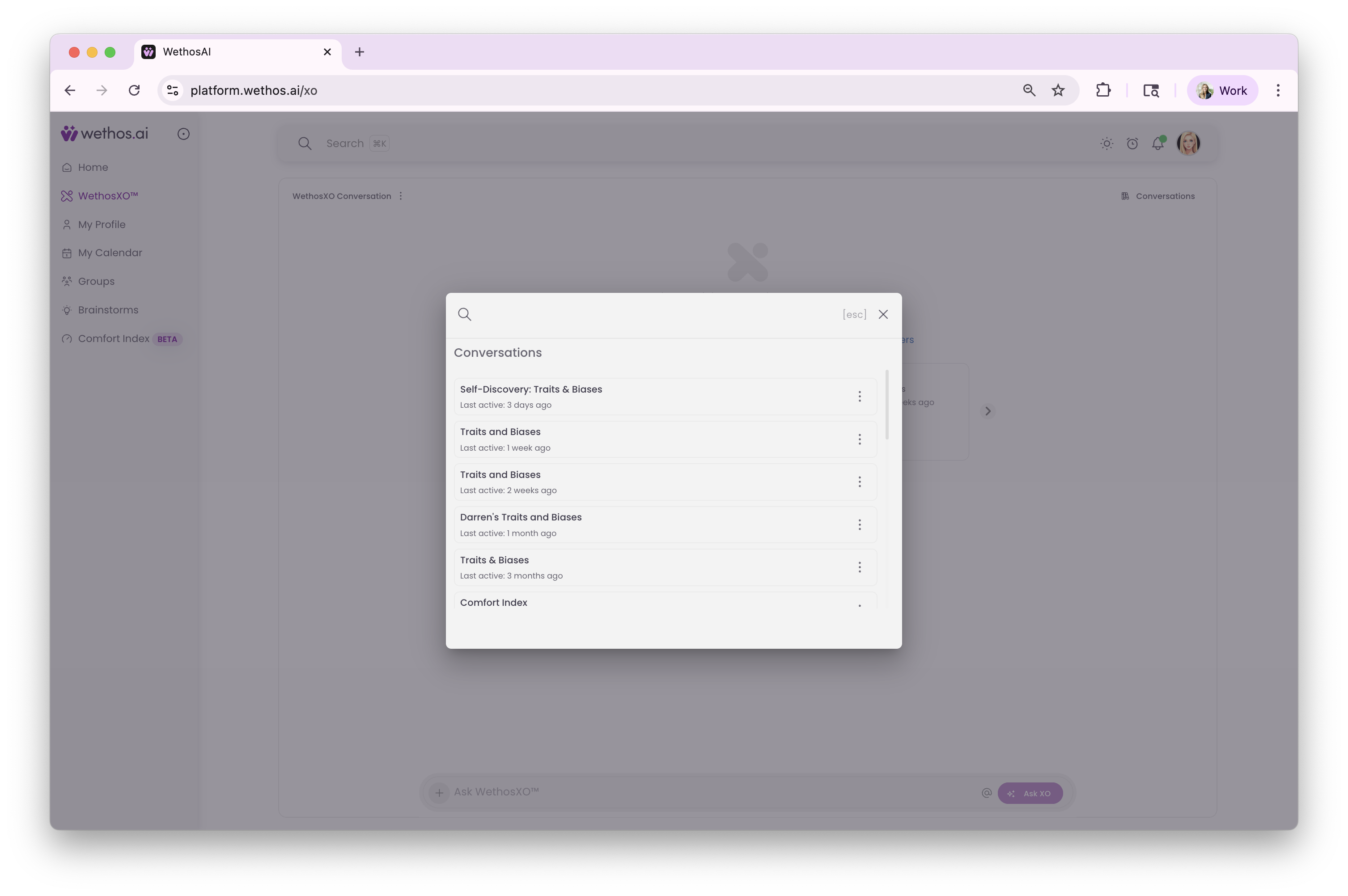
- XO in the left-hand menu, then Conversations. All of your own, private conversations with XO.
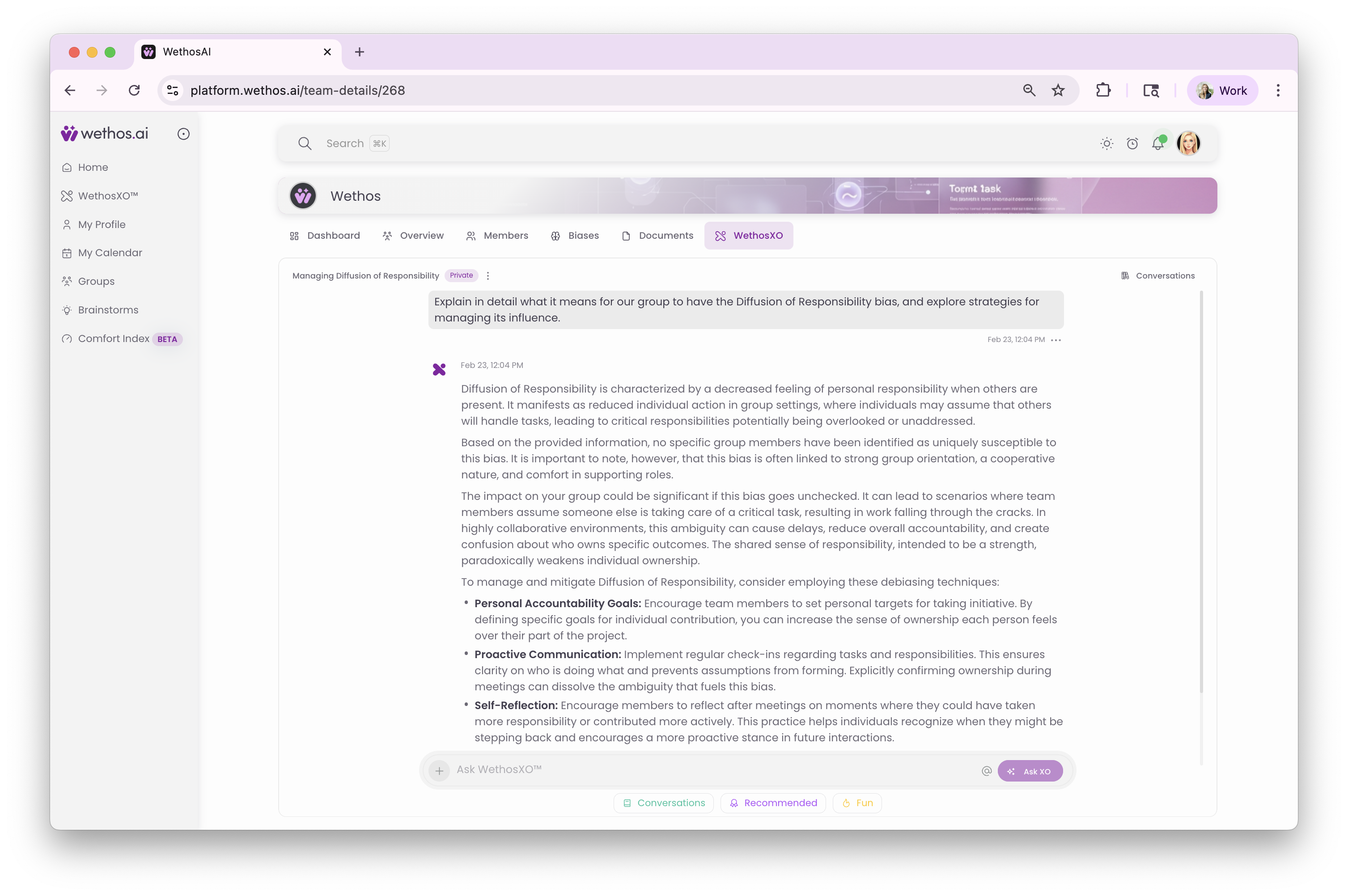
- A group, then the XO tab, then Conversations. The group's shared conversations, and your private conversations inside that group.
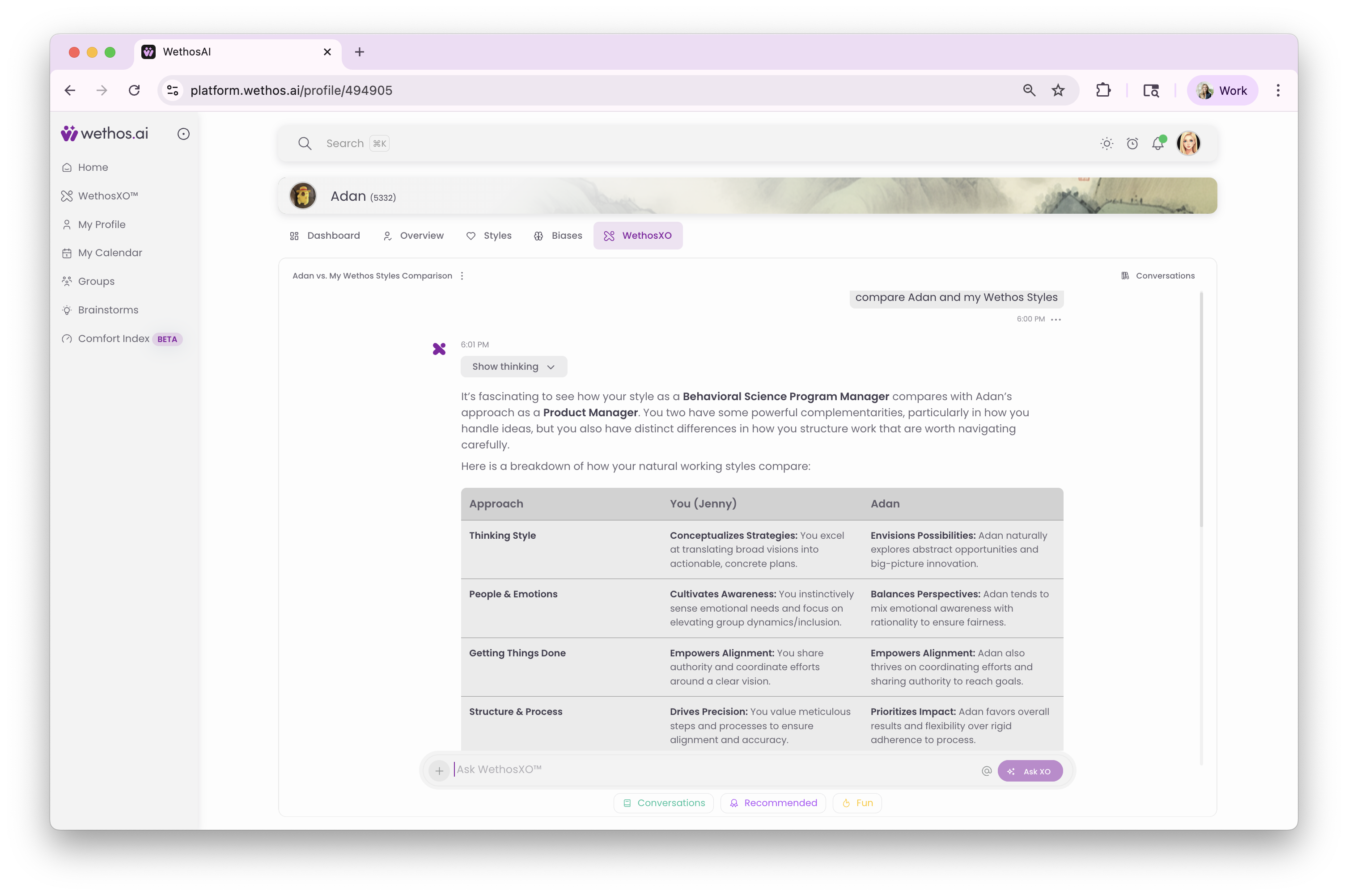
- A person's profile page, then the XO tab, then Conversations. The conversations you had while preparing to talk to that person. Only you can see them.
Keeping them organized
-
Automatic names. XO names each conversation from its content.
-
Rename when useful. In your own conversations you can rename at any time. In a shared conversation, only the person who started it can rename it.
-
Active status. You can see which shared conversations in a group are active and which are public.
-
Newest first. The most recent conversations appear at the top.
Who can see what
- Your private conversations stay private in every context: the left-hand menu, groups and profile pages.
- Shared conversations are visible to every member of the group. Only the person who started one can edit or delete it.
- Conversations on a person's profile page are your own preparation for talking to that person. Nobody else can see them.
Getting started
Persistent conversations
- Talk to XO as you normally would, from the left-hand menu, on a person's profile page, or inside a group.
- The conversation saves itself.
- Come back to it whenever you want.
Shared conversations
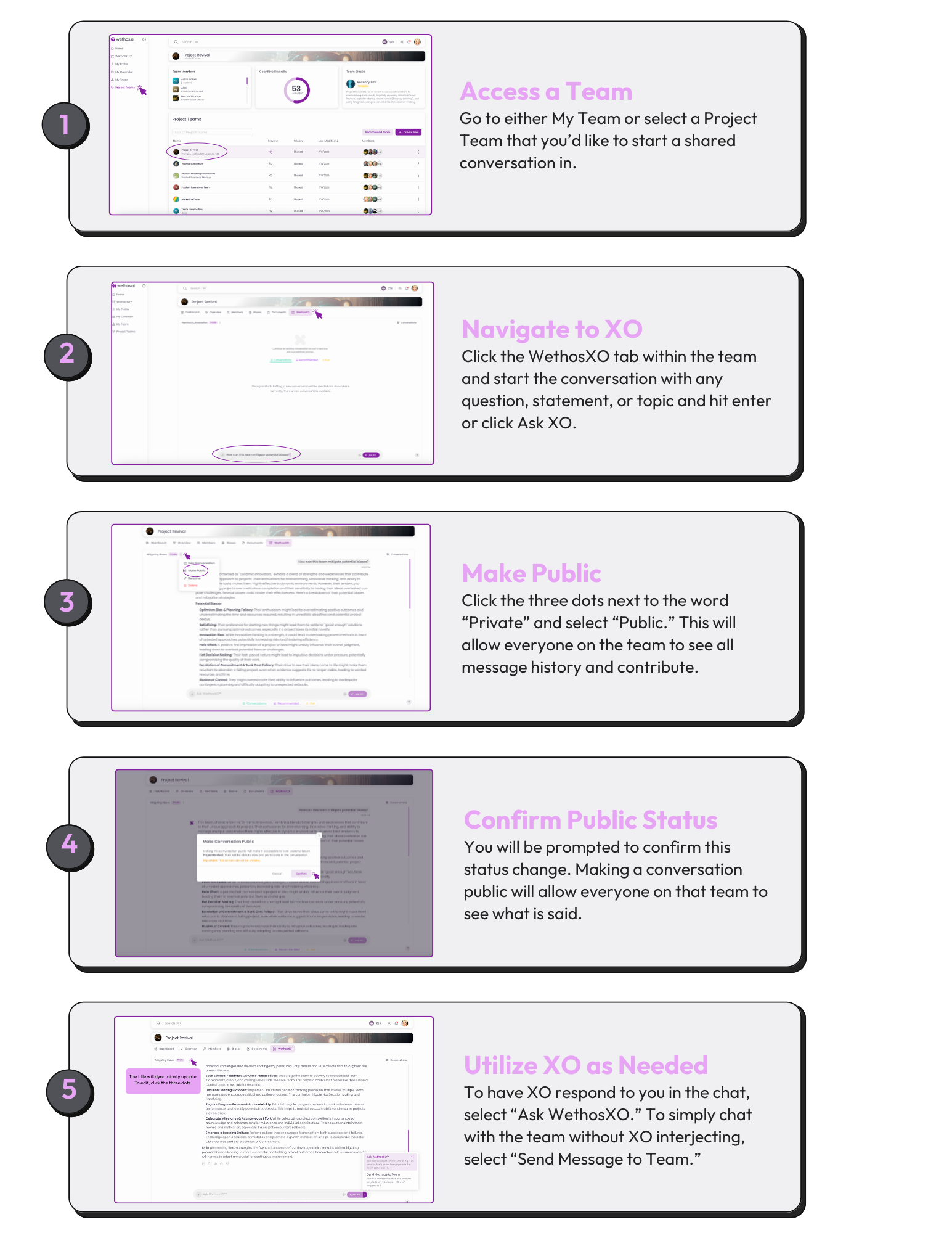
Open the group, then its XO tab. Before any conversation has started, you will see prompt cards to begin with.
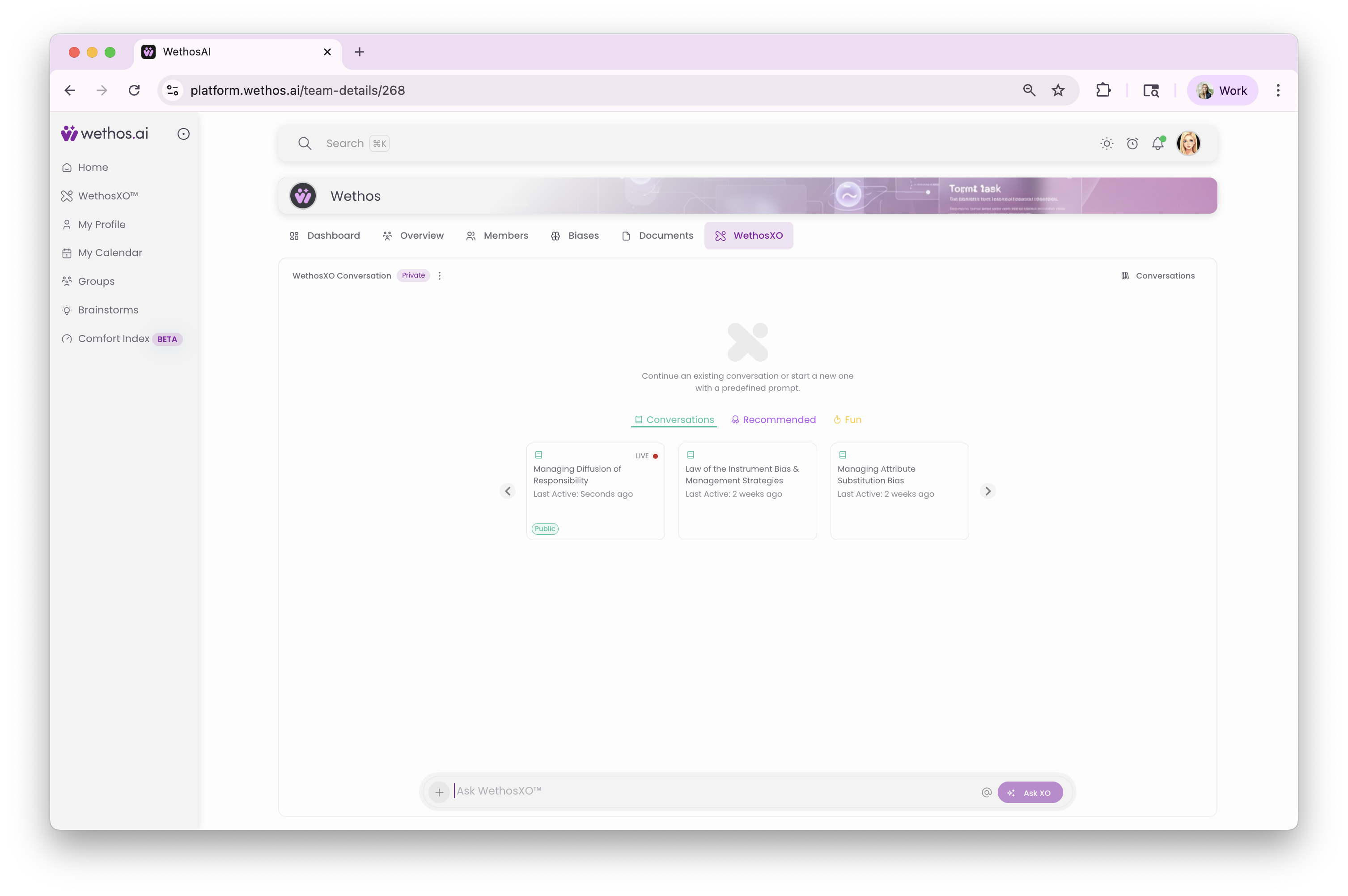
To start one and share it with the group: open the group, open XO, start a conversation, then click the three dots next to the word Private and choose Public. Confirm, and everyone in the group can see and join it. Use Ask XO when you want XO to reply, and Send message to team when you do not.
Tips
- Decide when XO speaks. In a shared conversation, switch modes to control when XO takes part.
- Catch up quickly. Ask XO for the key points, the decisions and the action items.
- Keep one conversation per recurring topic. For example, the weekly leadership meeting, a deal in progress, or the budget.
- Name conversations so you can find them later.
Privacy
- Each conversation is separate. XO only has the context of the conversation you are in.
- XO does not carry what you said in one conversation into another.
- Think of conversations as separate email threads, each with its own history.
- Your own conversations are not visible to other members.
- Conversations on another person's profile page are private to you.
- Your employer and your organization's admins cannot see your private conversations, and they cannot see a group conversation unless they are a member of that group.
Every context and its visibility
| Where | Kind | Who can see it |
|---|---|---|
| Home | Your own, with XO | Only you |
| Your profile page | Your own, with XO | Only you |
| Another person's profile page | Your own, with XO | Only you |
| Calendar | Your own, with XO | Only you |
| A group | Your own, with XO | Only you |
| A group | Shared, with XO | The members of the group |
| A Project Group | Your own, with XO | Only you |
| A Project Group | Shared, with XO | The members of the group |