
Understanding and using XO
Where to find XO, what it can do, and how to work with it.
What XO is
XO™ is the AI assistant inside WethosAI. It differs from a general-purpose assistant in what it knows. XO knows your profile, meaning how you tend to work. It knows the context of wherever you are asking from, such as a group's documents or a Brainstorm's conversation. And it knows the profiles of any people you name in your question. So when you ask XO how to make a case, it answers for the specific people you will be making it to, not for a generic audience.
XO is not a separate tool you go to. It is built into the places where work happens: your profile page, your groups, your Brainstorms and your documents.
Where to find XO
Click XO in the left-hand menu to open it. You can also talk to XO in Slack and Microsoft Teams. See XO in Slack and Microsoft Teams.
Within the platform, XO appears in four places, and each has its own privacy setting.
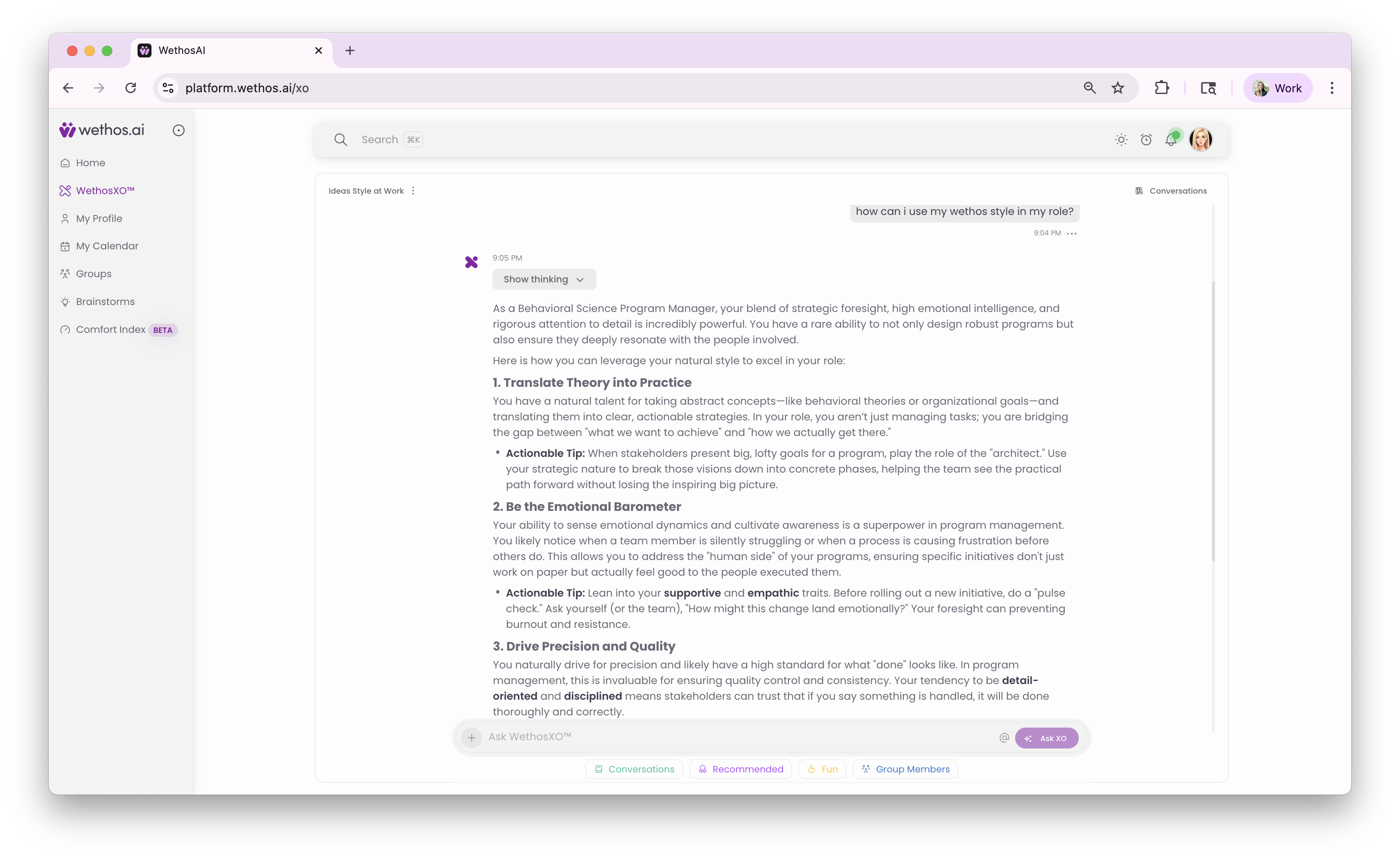
The main XO chat, which is private
This is your own space with XO. Bring it a decision you are facing, a draft you are unsure about, or a question about the platform. No one else in your organization can see this conversation.
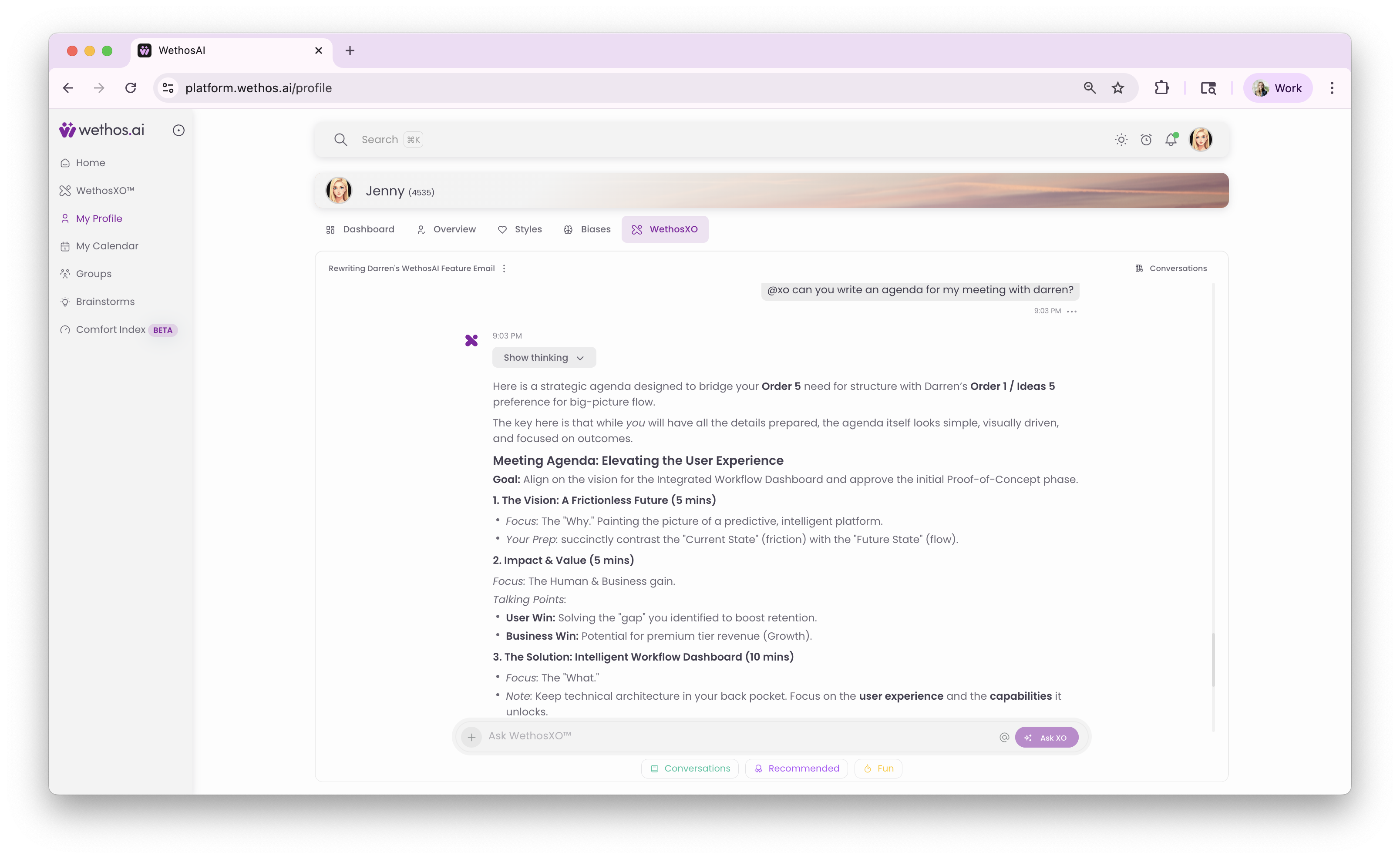
XO on your profile page, which is private
Here, XO answers questions about how you work. You can ask where your profile suggests you move quickly, what you tend to skip, or how to prepare for a decision that goes against your usual habits. This conversation is always private.
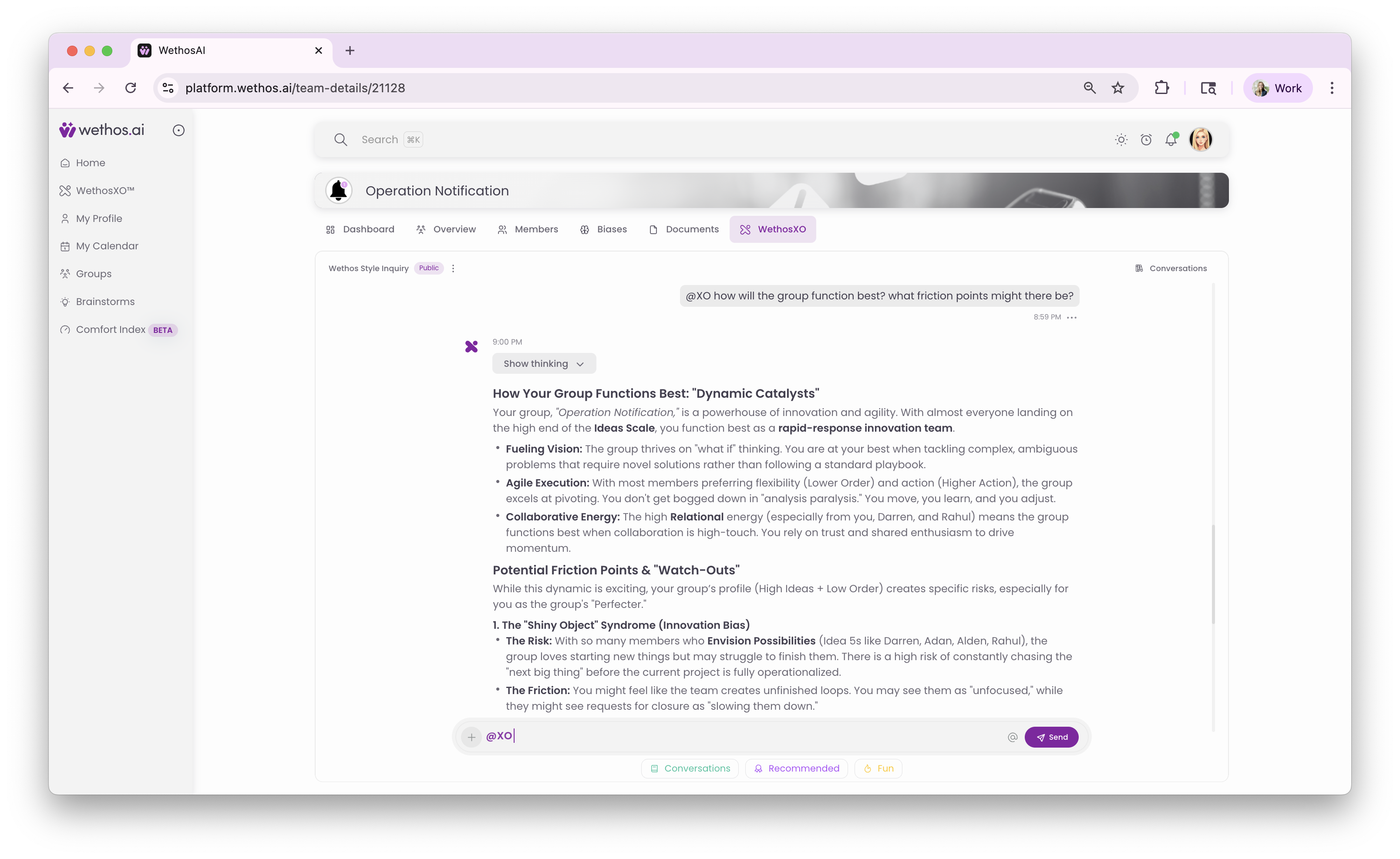
XO in a group, which is private unless you make it public
Inside a group, XO starts out private, so only you can see its answers. You can switch a conversation to Public, which makes it visible to everyone in the group. In a public conversation, any member can bring XO in by tagging it, and ask it to summarize the discussion, point out where the discussion may be going wrong, or list the next steps. Keep a conversation private for your own preparation, and make it public when the group needs one shared record.
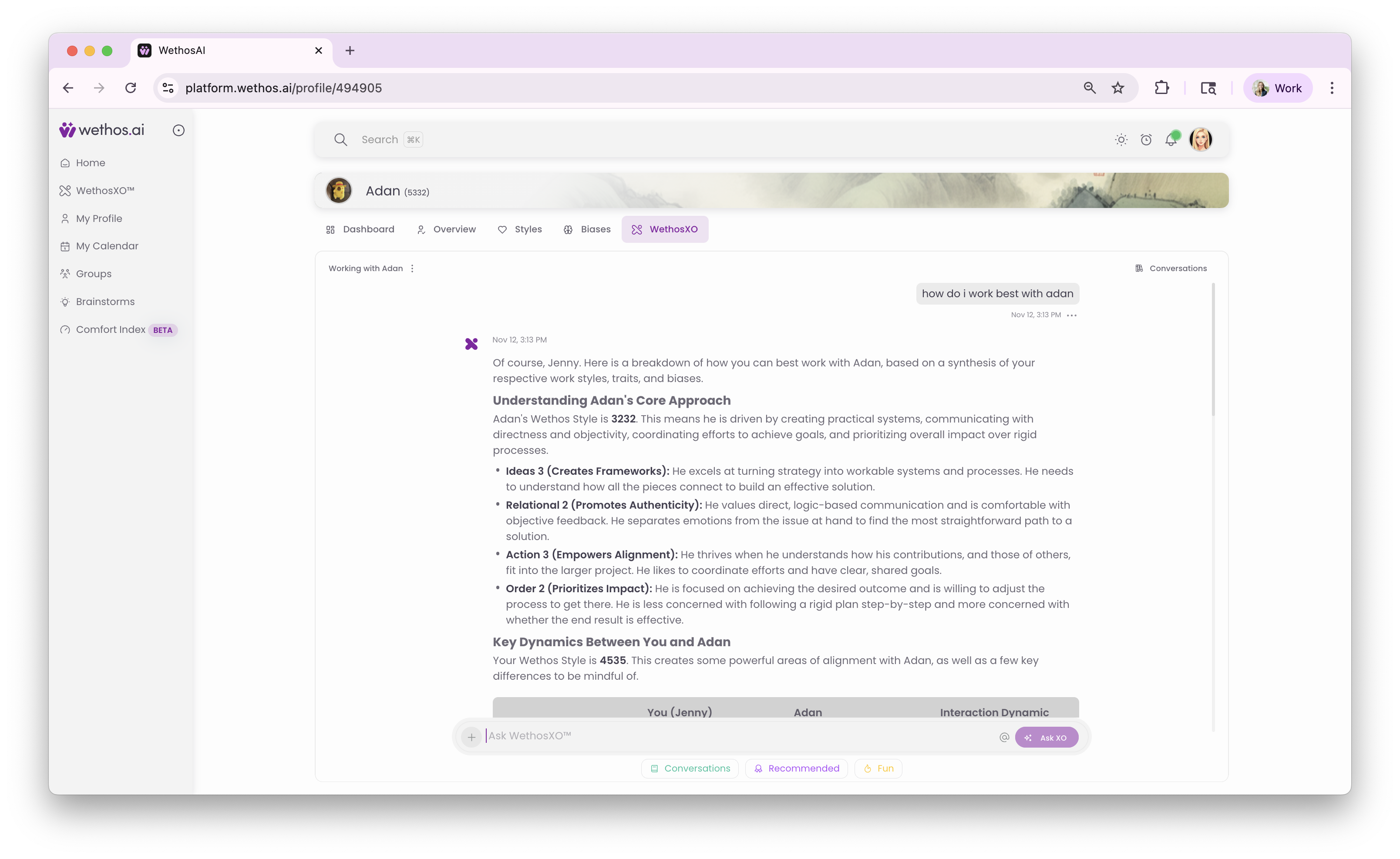
XO on another person's profile page, which is private
On someone else's profile page, XO helps you prepare for a conversation with that person. You can ask how to present a proposal to them, what they will probably want to see first, or where they are likely to object. Like every XO conversation, this one belongs to you. It is not shared with anyone, including the person whose profile you are looking at. Its purpose is to prepare you for a conversation with them.
Privacy at a glance
| Where | Default | Who can see it |
|---|---|---|
| The main XO chat | Private | Only you |
| XO on your profile page | Private | Only you |
| XO in a group | Private, and can be made public | Only you, unless you make it public for the group |
| XO on another person's profile page | Private | Only you |
None of your conversations with XO are visible to anyone else in your organization unless you make a group conversation public. Privacy: who can see what covers every case.
What XO can do
Help you prepare for a decision. Describe the decision and name the people whose agreement you need. XO tells you who is likely to object, what they are likely to object to, and how you might open the conversation.
Adapt an argument for a specific person. Based on that person's profile, XO suggests how to present the same case so that it lands with them. For someone who wants the facts first, it suggests leading with the numbers. For someone who thinks in terms of the whole picture, it suggests leaving room for that.
Summarize a discussion. In a group or a Brainstorm, XO condenses a long conversation into the main themes, the decisions made, and the questions still open, so anyone can catch up quickly.
Point out where a discussion is going wrong. When tagged in a shared conversation, XO can notice patterns that lead groups astray, such as everyone agreeing too quickly, fixing on the first number mentioned, or giving too much weight to the most recent piece of evidence, and it suggests how to correct for them.
Help you prepare for a meeting. Before a meeting on your calendar, XO can describe what to expect from the people attending and what each of them is likely to want answered.
Carry context across the platform. What XO learns in one place is available in the others. It works across profiles, Brainstorms, Breakouts and documents.
How to talk to XO
Prompt cards
In each place XO appears, you will see ready-made questions such as "What is this group working toward?", "Help me prepare for my next meeting" or "Explore the new document in this group". These are a quick way to begin when you do not yet have a specific question.
Your own questions
Type any question or request. XO answers using the information available where you asked: your profile on your profile page, the group's members and documents inside a group, the attendees of a meeting on your calendar.
Naming a person with @
To bring a specific person into your question, type @ followed by their name. For example: "How should I present the pricing change to @Sarah?" After you have named someone once, you can ask follow-up questions about them without the @: "What will she want to see before she agrees?"
You can name several people in one question: "Where are @Sarah and @John likely to disagree about this?"
Telling XO who is involved
If you tell XO who has a say in a decision, it can answer about all of them at once. For example: "The people who need to agree to this are @Sarah, @John and @Justin, and @Fiona gives the final approval." Then you can ask: "Where is this likely to get stuck?"
Rating answers
Every XO answer has a thumbs up and a thumbs down beneath it. Your feedback is how XO improves. If an answer is worth keeping, the copy button puts it on your clipboard.
Common uses
- Working out who needs to agree to a decision and where each person is likely to object
- Adapting a recommendation for the person who has to approve it
- Practicing a difficult conversation before having it
- Summarizing a long group discussion so someone who joined late can catch up
- Checking whether a group discussion is agreeing too quickly or fixing on one idea
- Getting a list of next steps out of a Brainstorm
- Rewording a message so that it lands well with the person receiving it
When XO gets it wrong
XO can be wrong, vague or out of context. Try these, in order: add more detail to your question, start a new chat with the + button, or sign out and back in. Troubleshooting has the full list.
Things to keep in mind
XO supports your judgment. It does not replace it.
AI can be wrong. Check anything important against another source and your own judgment before you act on it.
Describe the decision, not just the question. The more XO knows about what is at stake and who is involved, the more specific its answer.
Stay up to date. The WethosAI newsletter and the Slack community share new features and how people are using them.
Tips
Be specific. Instead of "How should I talk to my team?", try "How should I present a change of scope to a group where most people want the plan finished before anything moves?"
Ask from the right place. A question asked inside a group has that group's documents and members behind it. The same question asked in the main XO chat gets a more general answer.
Make conversations public on purpose. When a group needs one shared summary, or a visible record of a decision, switch to Public. Keep your own preparation private.
Name the people involved early. Once XO knows who has a say in a decision, every later question gets a better answer.
Use @ consistently. Naming a person with @ makes XO use their actual profile instead of a generic one.