
XO in Slack and Microsoft Teams
Talk to XO, run a Simulation, and open a private breakout without leaving the tools your team already uses.
XO is the AI assistant inside WethosAI. You can use it from Slack and from Microsoft Teams as well as from the platform itself. In Slack, you can ask XO anything you would ask it on the platform. In Microsoft Teams, you can also start a Simulation from any message and open a private conversation with XO from inside a group discussion.
Connect
Open User Settings, then Integrations, and choose Slack or Microsoft Teams. Follow the steps to authorize WethosAI in your workspace. When the connection is complete, the card for that integration shows it as connected. If your organization controls which apps can be installed, an admin may need to approve WethosAI first.
XO in Slack
Ask XO anything. Send XO a direct message to prepare for a conversation, think through a decision, or ask how to present a recommendation to a particular person. It answers using your profile and whatever context you give it, exactly as it does on the platform.
Prepare for a meeting. Before a meeting, ask XO who will be there and what each person is likely to want answered.
Get updates. XO can send you updates from your WethosAI workspace as they happen, such as a decision recorded in a Brainstorm you belong to, or a shared conversation that mentions you.
Your direct messages with XO in Slack are private. No one else in your organization can see them.
XO in Microsoft Teams
Ask XO anything. Everything described above for Slack works in Teams as well.
Start a Simulation from a message. A Simulation is a discussion that AI participants have before the real people join, so you can see how it is likely to go. From any message in a Teams channel or chat, start a Simulated Brainstorm. Choose the participants, set the goal, add the context, and the Simulation runs in the thread. Running a Simulation explains what it produces and how to read it.
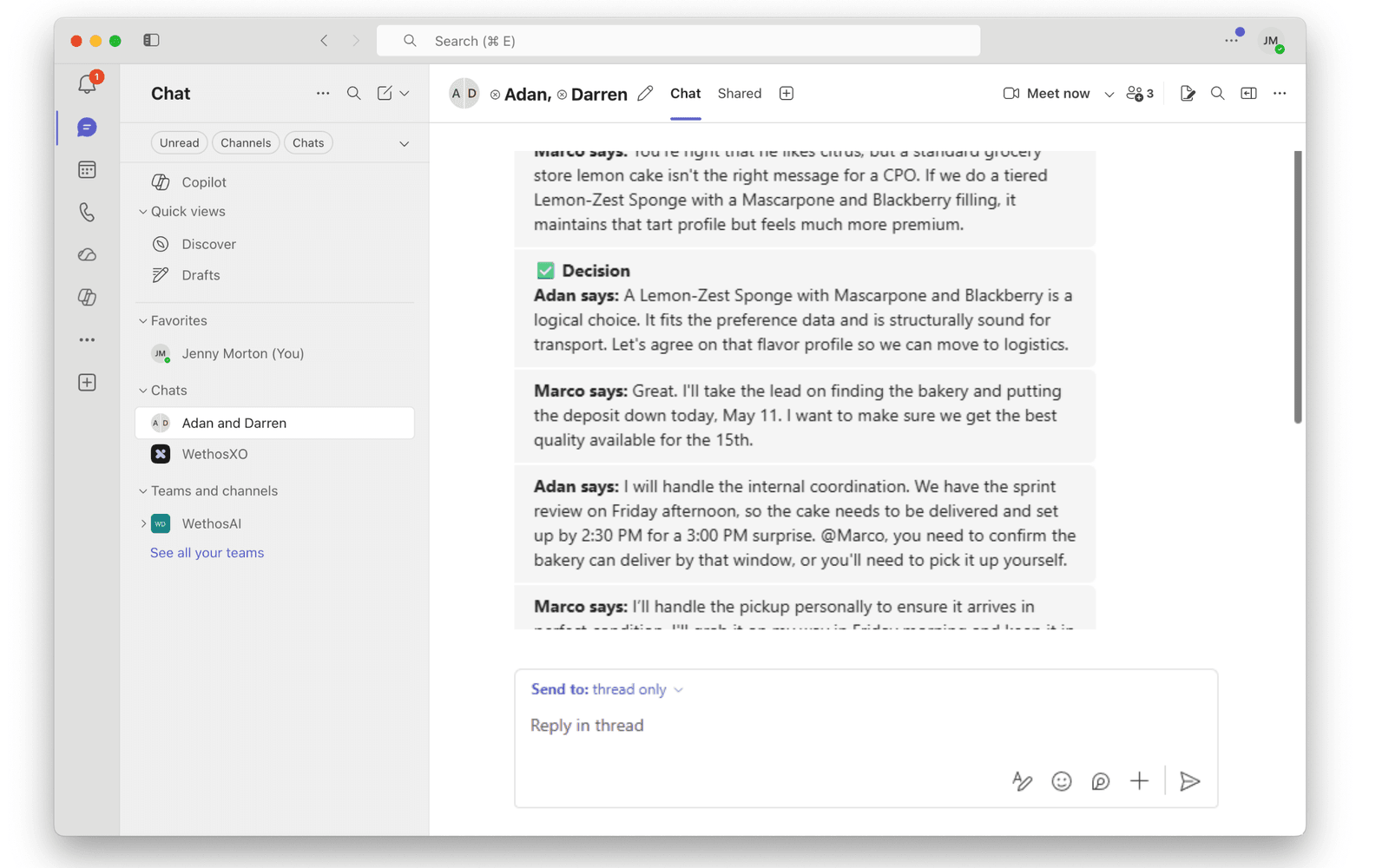
Open a private conversation with XO. From any group conversation in Teams, you can break out into a private one-to-one conversation with XO. XO keeps the full context of the group discussion, so you can think through a sensitive question or prepare your position without leaving Teams. Only you can see this conversation.
Privacy
A conversation you have with XO in Slack or Teams follows the same rules as on the platform. It is private to you unless it takes place in a shared thread that others can see. Privacy: who can see what has the full picture.
If something is not working
- Check the integration card under User Settings, then Integrations. If it shows disconnected, connect it again.
- In Slack, XO uses the timezone in your Slack profile. If times look wrong, check that setting.
- If XO does not respond in a channel, make sure the WethosAI app has been added to that channel.
- If none of that helps, see Troubleshooting or email support@wethos.ai.