
Running a Decision Simulation
Test a decision against the people involved before you act: set the brief, choose who takes part, rehearse, rerun and hand over.
What a Decision Simulation is
A Decision Simulation tests a decision against the people involved before you act. AI participants that represent those people work through the question first, so you can see likely questions, resistance, alignment, tradeoffs and execution risk before the real discussion. In the product, a Decision Simulation (product label: Simulated Brainstorm, sometimes AutoBrainstorm) runs inside a Brainstorm, a workspace for working through one decision.
Three kinds of participant can take part:
- A Permissioned Twin (product label: Twin) is a permission-based AI model of a specific person, built by that person. Twins.
- An Observed Twin (product label: Virtual Member) represents a specific person who has not created a Permissioned Twin, built from customer-approved organizational context and relevant publicly available professional information. Observed Twins (Virtual Members).
- An Expert Agent (product label: Expert) is an AI agent with skills in a defined area of work, such as finance or security. It does not represent a real person. Expert Agents (Utilizing Experts).
A Decision Simulation shows plausible responses, not exact predictions of what any real person will do. It prepares a decision. It does not make one.
When to run one
- Cybersecurity, risk and fraud. Run an incident, fraud attempt or urgent access request against the people responsible for approving, verifying or escalating it, and see where the control depends on one person being available. See Human Control Validation.
- Executive decisions and change. Test a reorganization, acquisition, leadership transition or strategic recommendation against the people who will approve, resist or carry it out.
- Human + AI workforce design. Test who should approve, oversee or stop an AI agent's action, and what happens when that person is unavailable.
- Leadership development, coaching and people teams. Rehearse a difficult conversation or a first presentation to a senior group before it happens.
Start a Decision Simulation
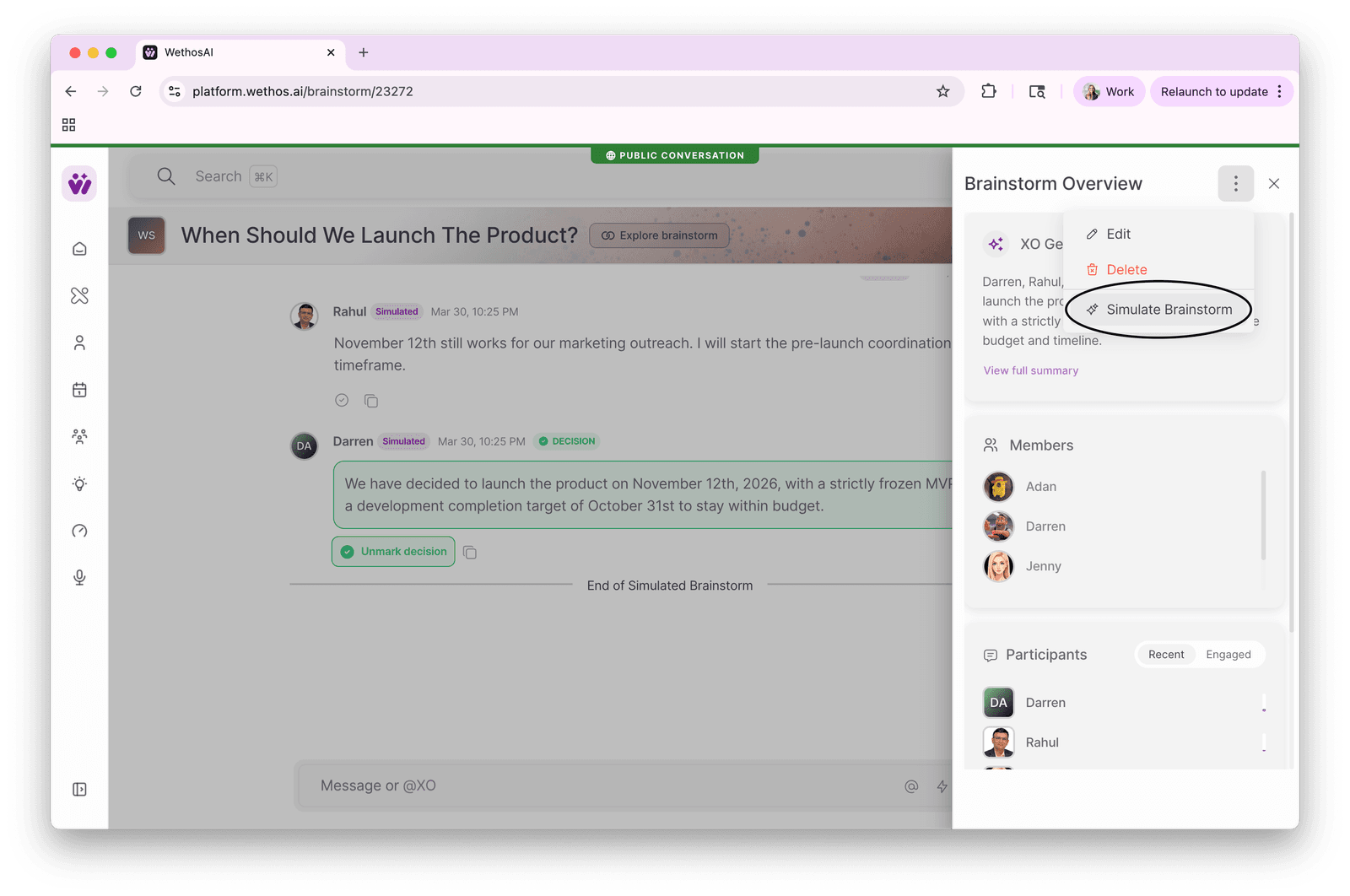
Go to Brainstorms and create a new Brainstorm, choosing the simulated option. You can also simulate an existing Brainstorm: open its Brainstorm Overview panel, click the menu (the three dots), and choose Simulate Brainstorm. If your organization uses Microsoft Teams, you can start one from any message in a channel or chat.
Write the brief
A Decision Simulation is only as useful as the brief you give it. Provide three things:
- A goal. The decision you want to test, in one sentence.
- The outcomes you want. What a good result would look like.
- Context. The documents and background the participants need. Attach them as Artifacts, which is the name for documents attached to a Brainstorm, so every participant can refer to them.
Choose who takes part
Choose the people who have a say in the decision or who carry it out. For anyone who is not on WethosAI, add an Observed Twin. If the decision needs a perspective nobody involved holds, add an Expert Agent, for example a security Expert Agent to challenge an approval step.
Let it run
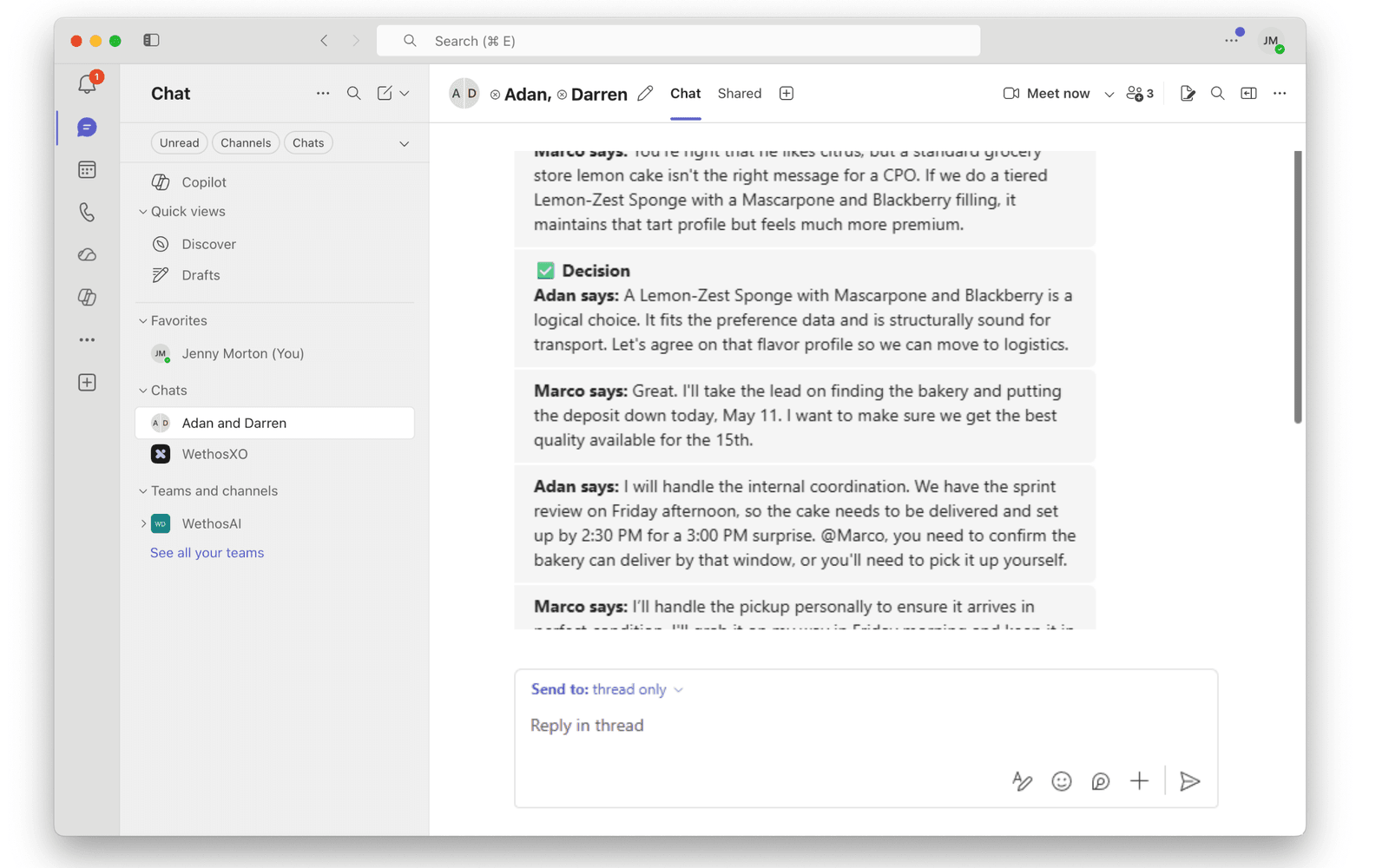
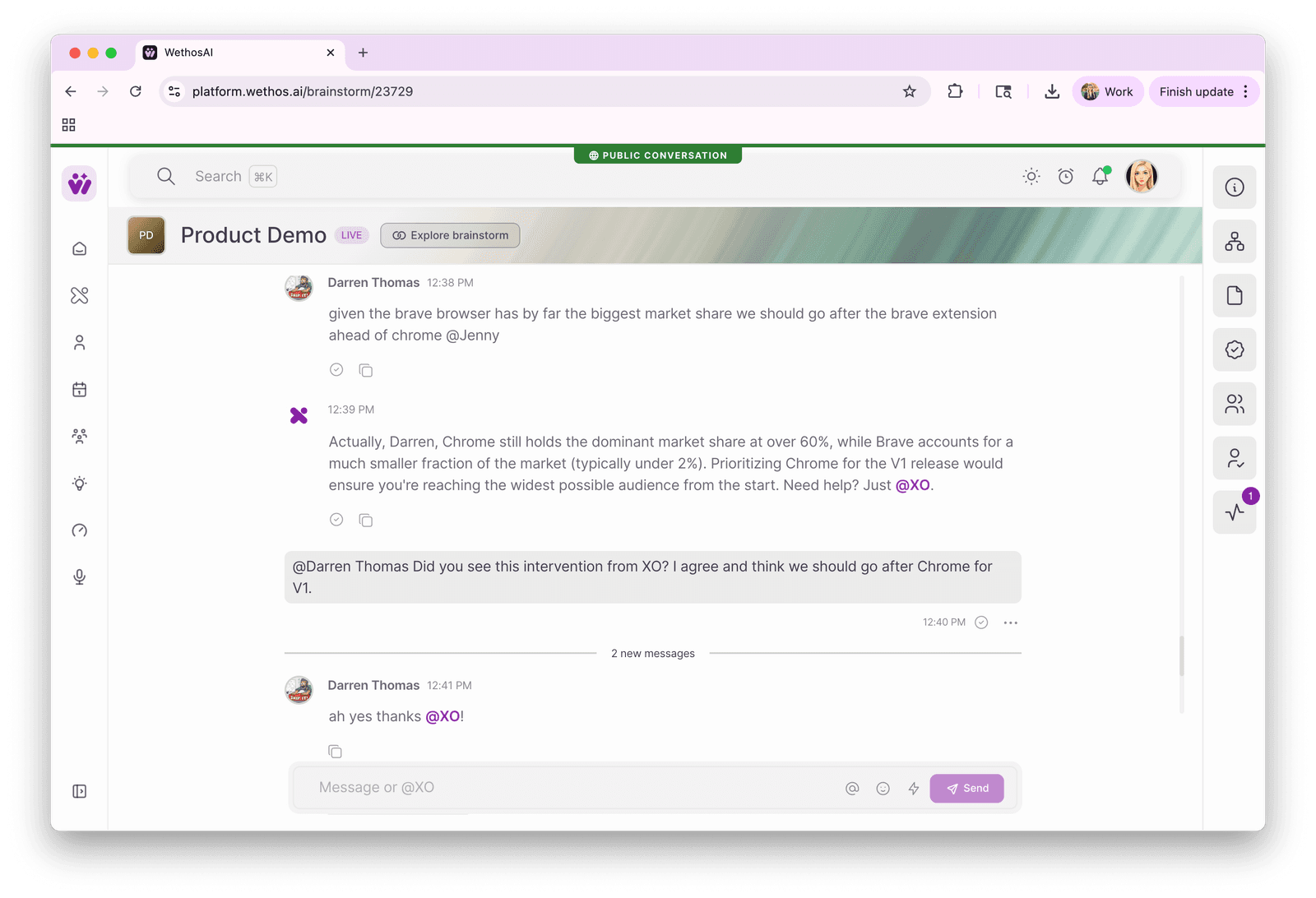
The participants discuss the question in the conversation thread. They raise questions, challenge one another and work toward the goal. XO, the AI assistant, guides the discussion: it corrects a factual mistake before the participants build on it, names a disagreement that is going in circles, brings back a question that was skipped, and records a decision when the participants reach one.
To see what XO did and why, open the XO Activity panel in the sidebar. It lists each moment XO stepped in, with a link to the message.
Read the results
Each decision the participants reach appears in the Decisions Hub, with its reasoning from the first disagreement to the conclusion. When you read them, look for:
- Where the discussion got stuck, and on what.
- Which questions and objections came up, and from whom. These are likely questions to prepare for and to test with the real people, not a forecast of what they will say.
- What each decision rests on. Ask XO: "Which of these decisions rests on the least evidence?"
Rehearse and run it again
Decision Rehearsal is what you do next: change the approach and run the scenario again. Open the same menu in the Brainstorm Overview panel and choose Simulate Brainstorm again. Change one thing at a time, such as how the recommendation is framed, how urgent the request looks, or who is available to approve it, so you can see what made the difference.
Patterns that recur across several runs are more informative than any single run.
Hand it over to your people
When the Decision Simulation ends, it becomes an ordinary Brainstorm. Your people can join it, read the decisions, ask XO about the attached documents, and continue from what the simulation found rather than from a blank page.
Tips
- Write the brief as carefully as you would for a real meeting. A clear goal, a specific description and the right documents produce a simulation worth reading.
- Choose participants because the decision involves them, not because of their titles. Include anyone whose objection or absence could stop the decision.
- Treat the results as preparation. They show plausible responses, not how the discussion will go. Test what you learn with the real people.
- Do not use a Decision Simulation to evaluate a person. WethosAI does not rate, rank or diagnose anyone, and its results must not be used to make employment decisions.