
Building and updating your profile
Update your profile from LinkedIn, a short set of questions or the full set, and choose which is active.
Your profile is what WethosAI knows about how you work. XO, the AI assistant, reads it when it helps you prepare for a decision, and a Brainstorm uses it to predict how you are likely to respond. You build your profile once when you join, and you can rebuild it or add to it at any time.
There are three ways to build a profile. You can also keep more than one version and choose which one is in use.
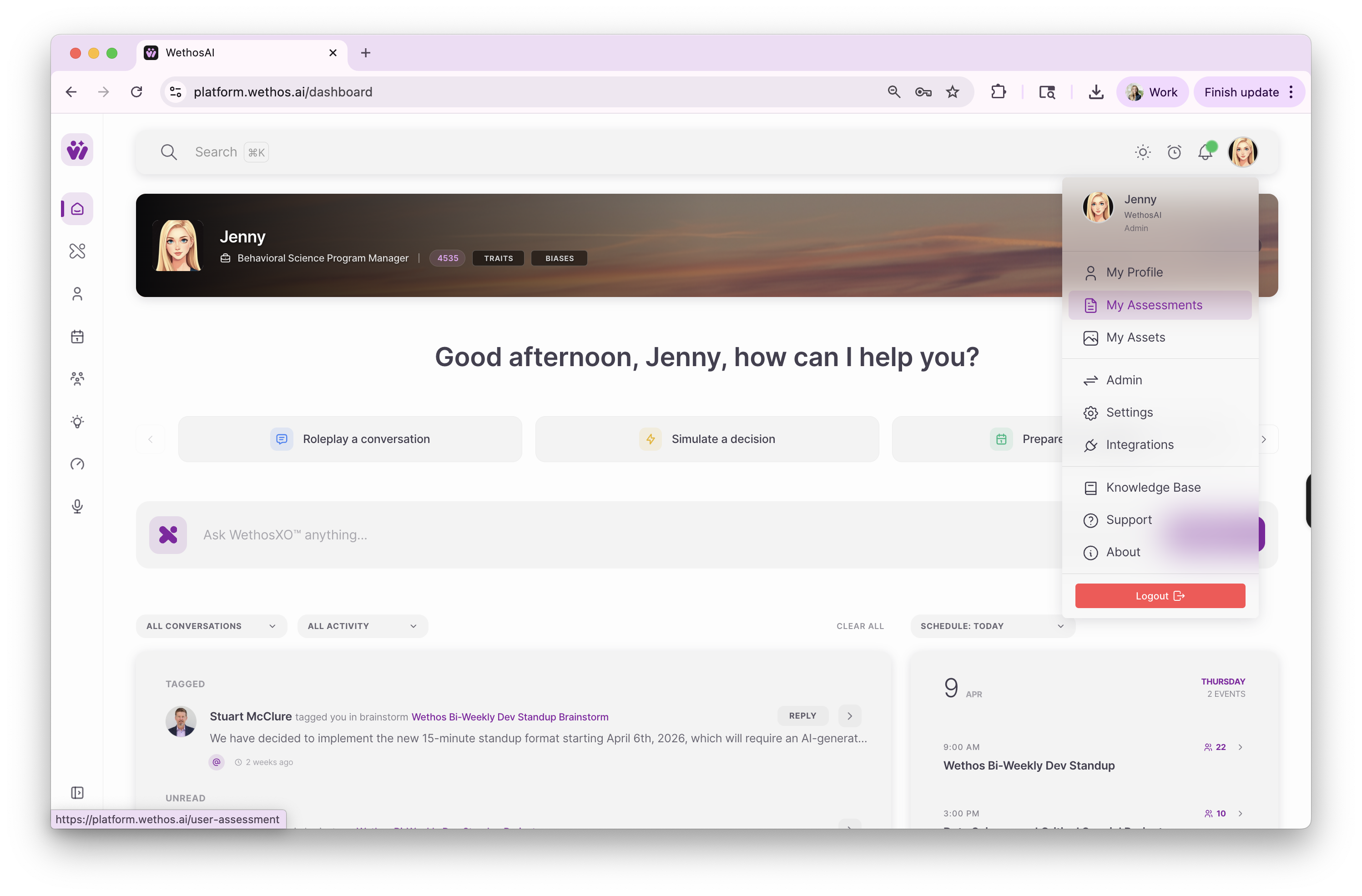
Open My Assessments
Click your profile icon in the upper right corner of the screen, then select My Assessments. This is the page where your profile versions live.
Click + New Assessment
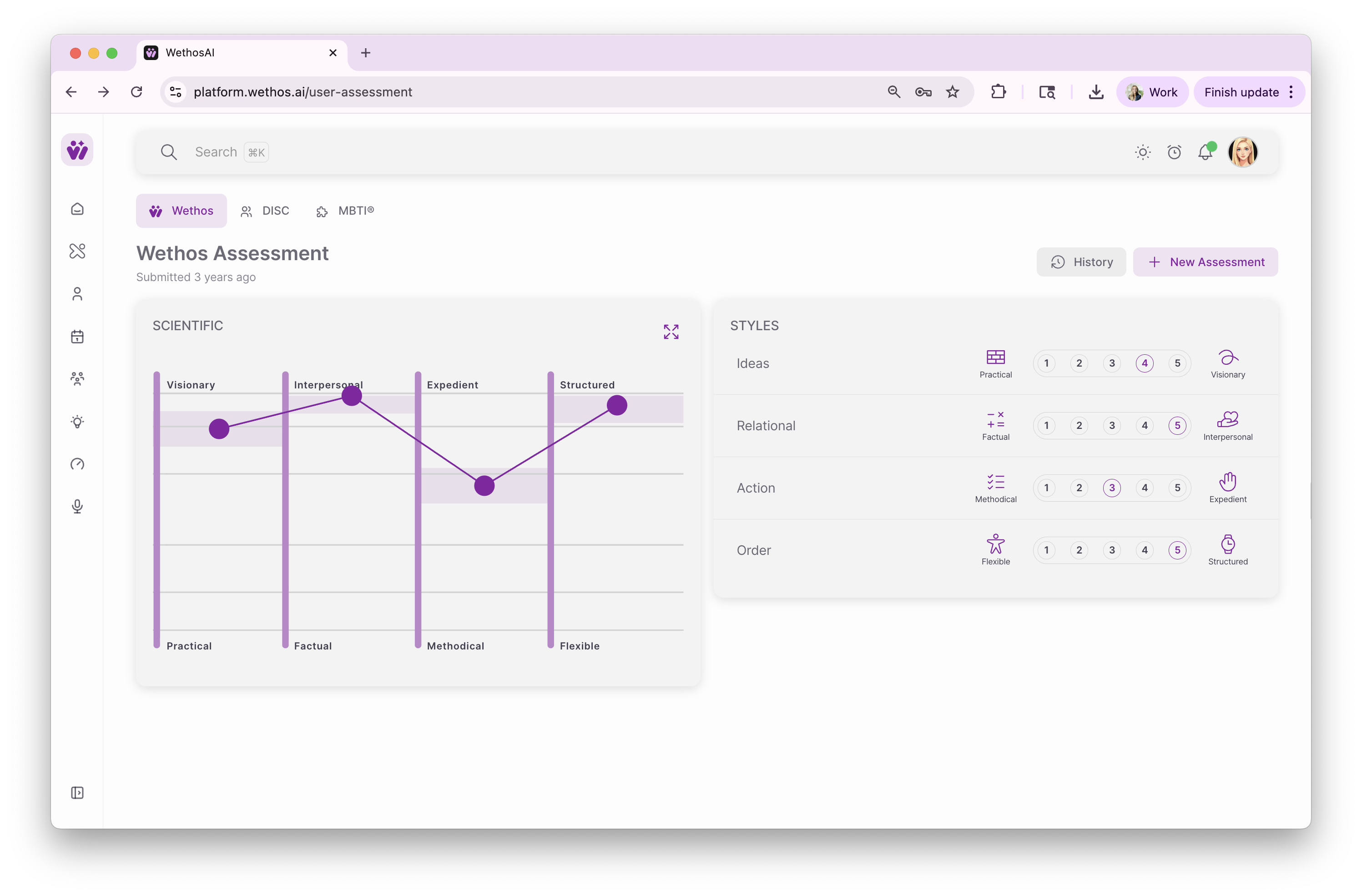
If your organization has turned the option on, you can also add DISC or MBTI results you already have to your profile from this page.
Choose how to build it
- From LinkedIn. Connect your LinkedIn account, and WethosAI builds a first version of your profile from your public work history. This takes no time, and it produces the least detailed profile of the three.
- A short set of questions. This takes about a minute and produces a reasonably detailed profile.
- The full set of questions. There are 84 questions, and they take about ten minutes. This produces the most detailed profile. We recommend it if you will use the platform for decisions that matter.
Each question offers three answers: Agree, Uncertain and Disagree. Answer according to how you actually work, not how you would like to work.
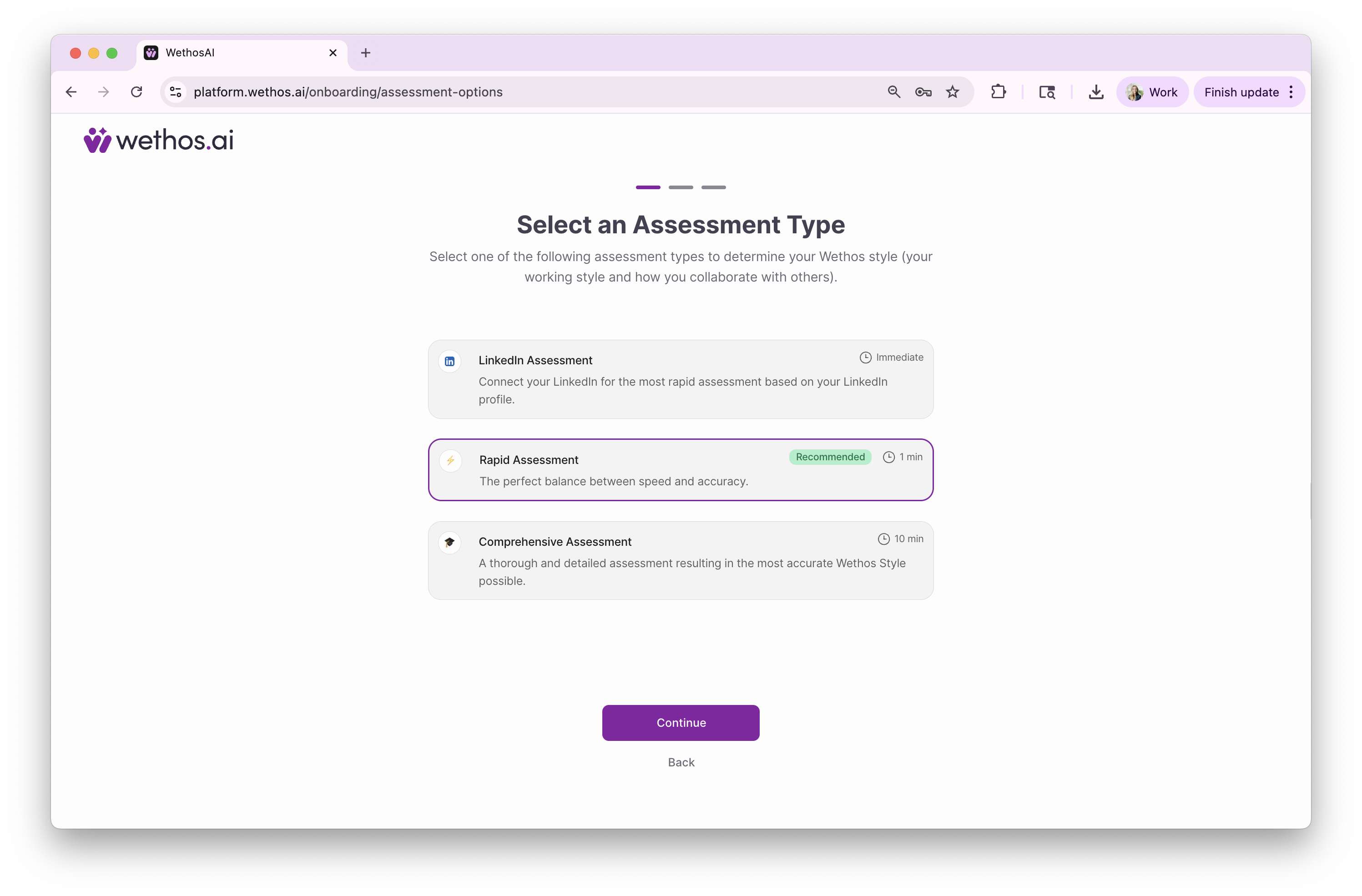
Whichever version you complete most recently becomes your active profile. The active profile is the one XO and every Brainstorm use.
Choose a different version
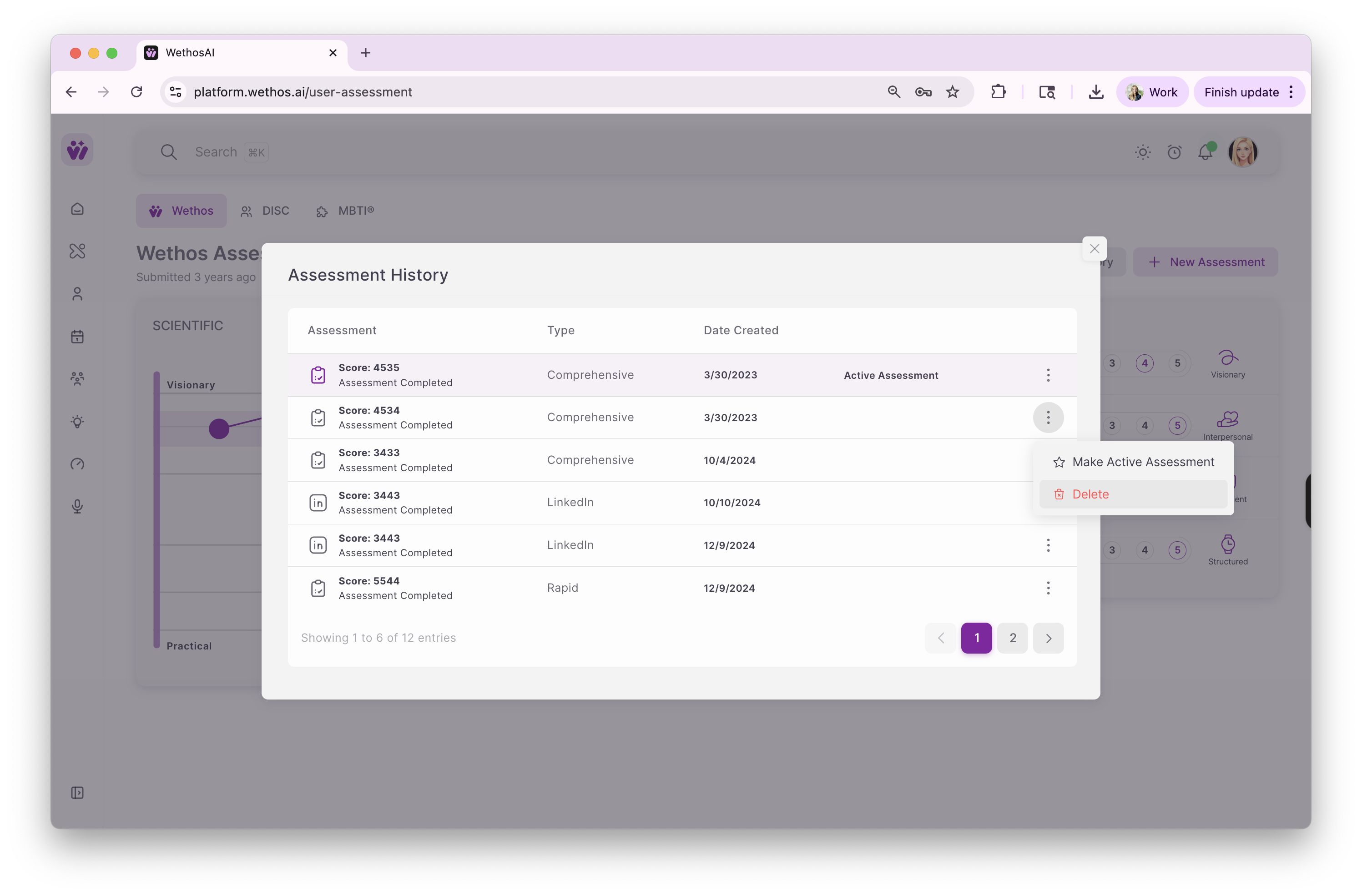
If you have built more than one version, you can switch between them. Click History, next to New Assessment. Find the version you want, click the three dots beside it, and choose Make Active Assessment.
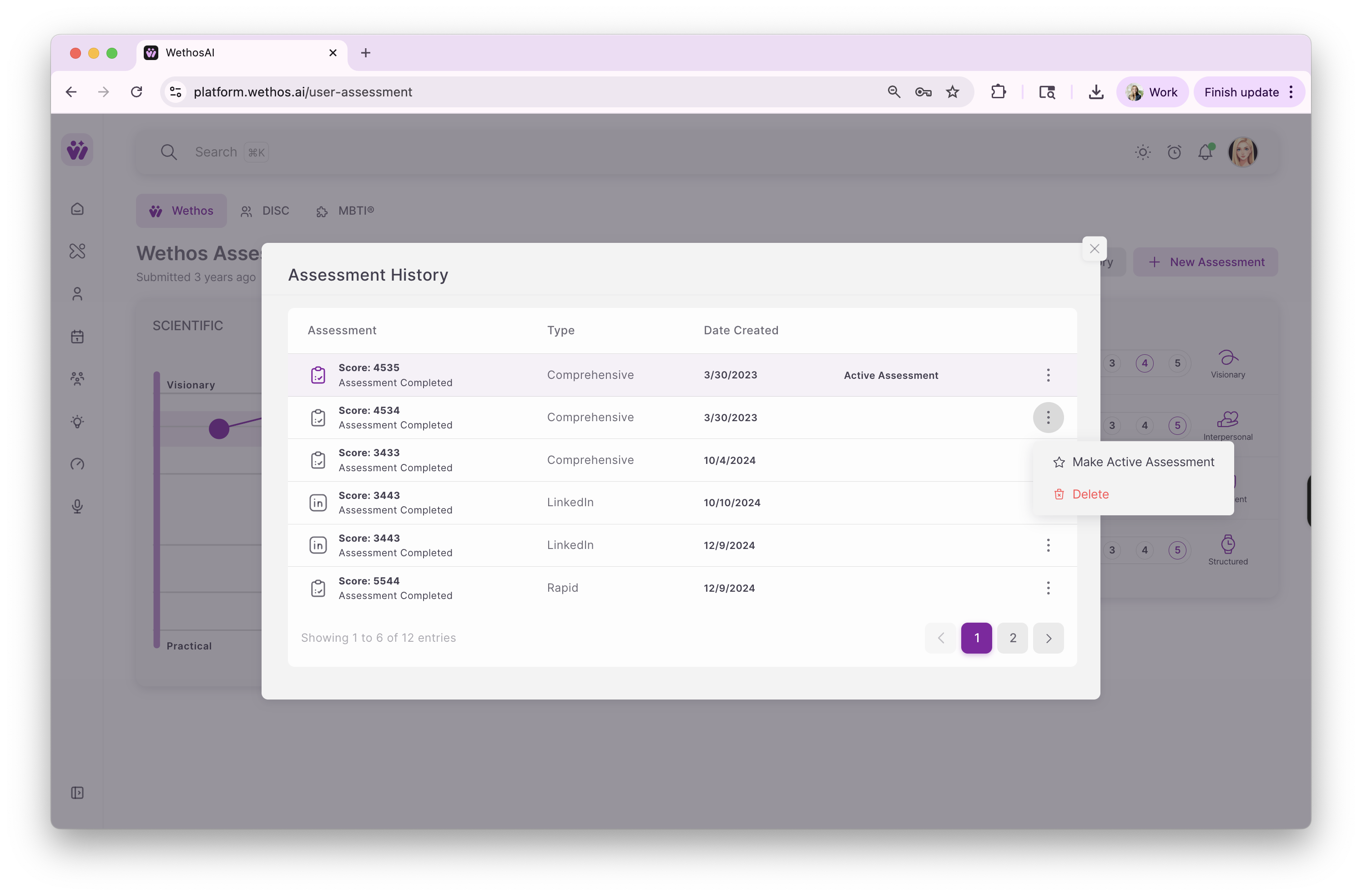
You can delete a version you no longer want from the same menu.
To understand what your profile describes, read The four dimensions behind a profile.