
Editing your profile
Customize your information, profile picture, banner, and downloadable assets.
Accessing your profile
- Log in to your WethosAI account
- Navigate to My Profile using the left navigation menu and click "My Profile"
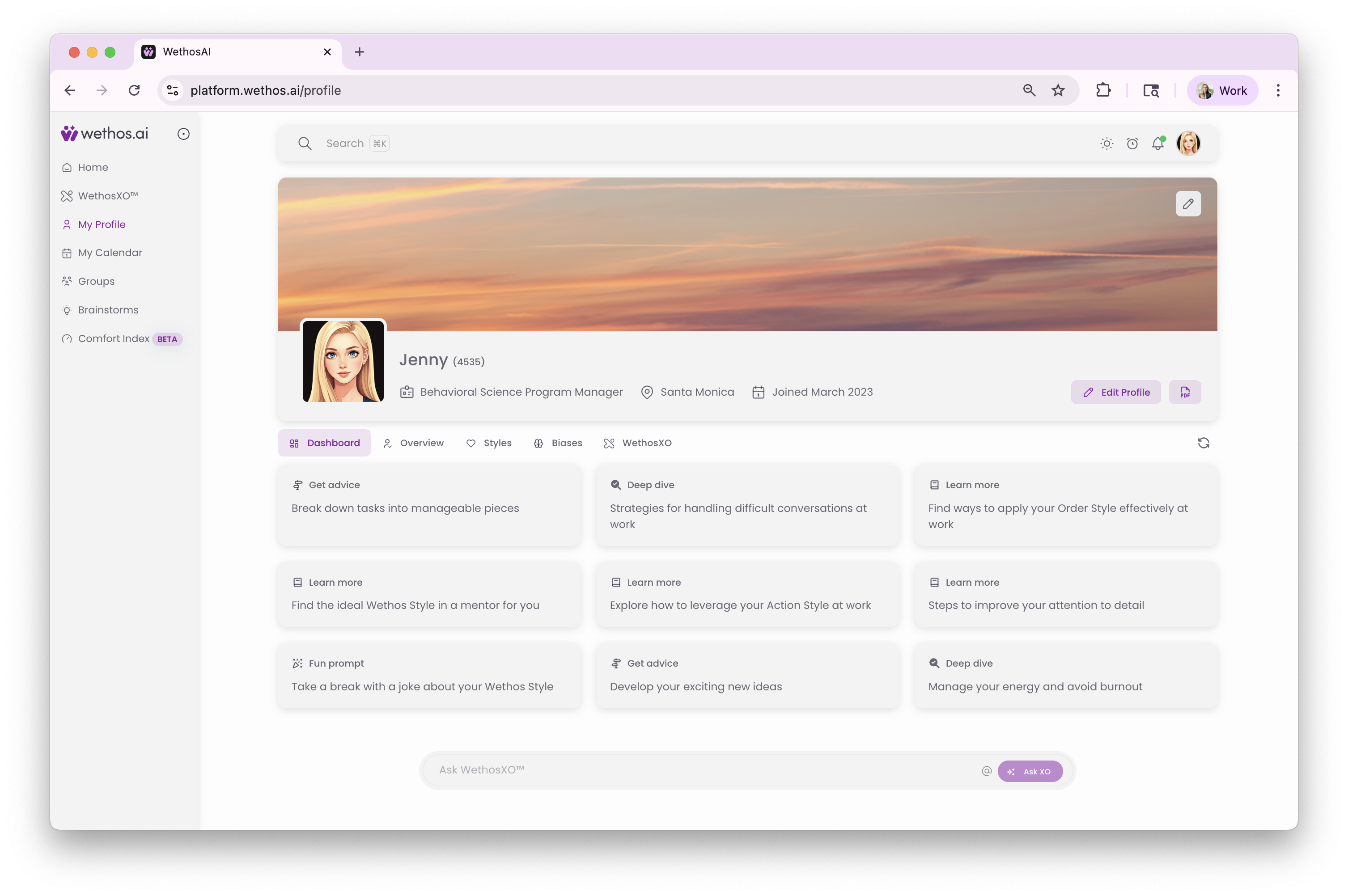
Editing basic profile information
-
On your My Profile page, locate the "Edit Profile" button
-
Click "Edit Profile" to open the profile editing modal
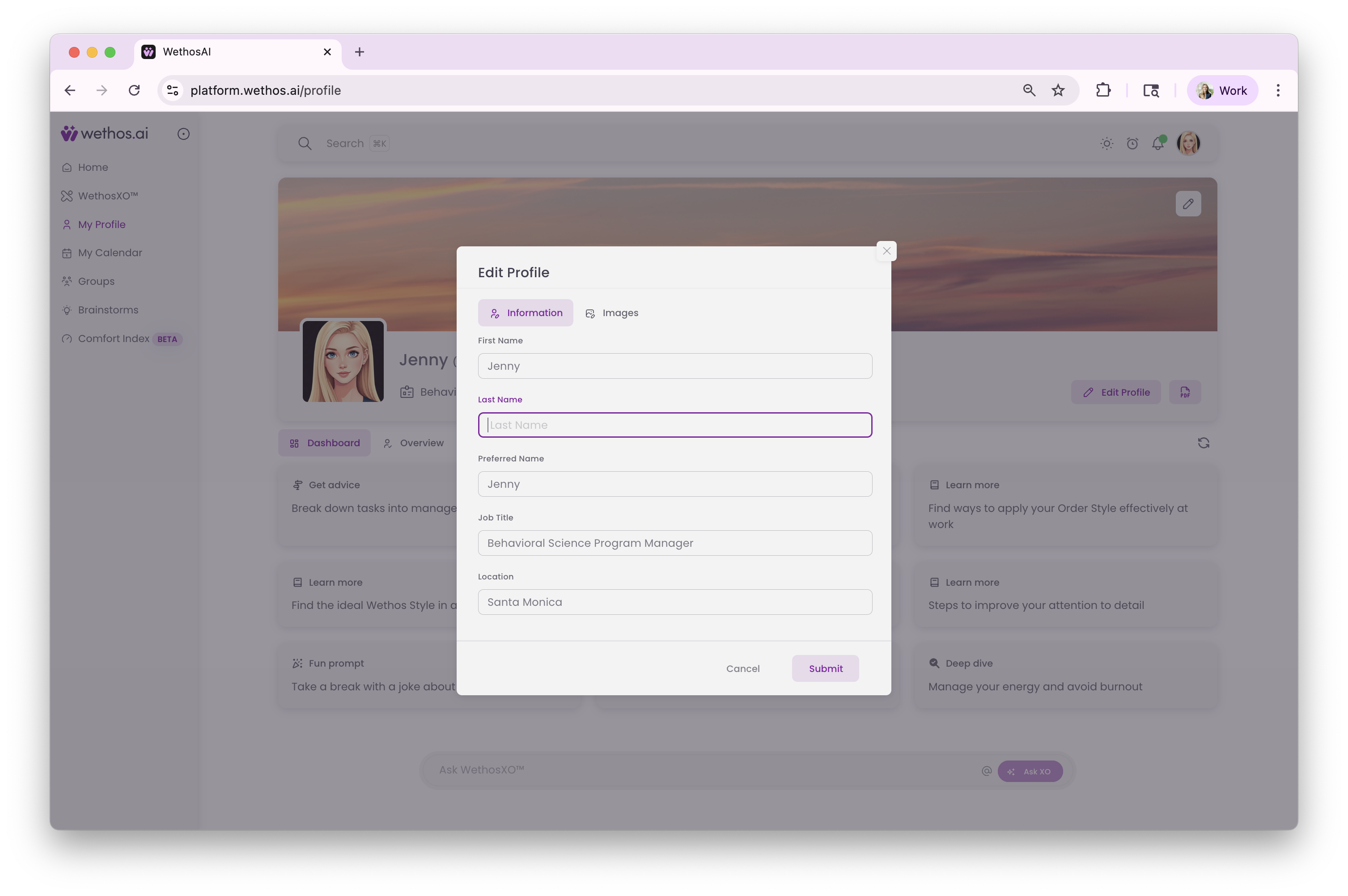
-
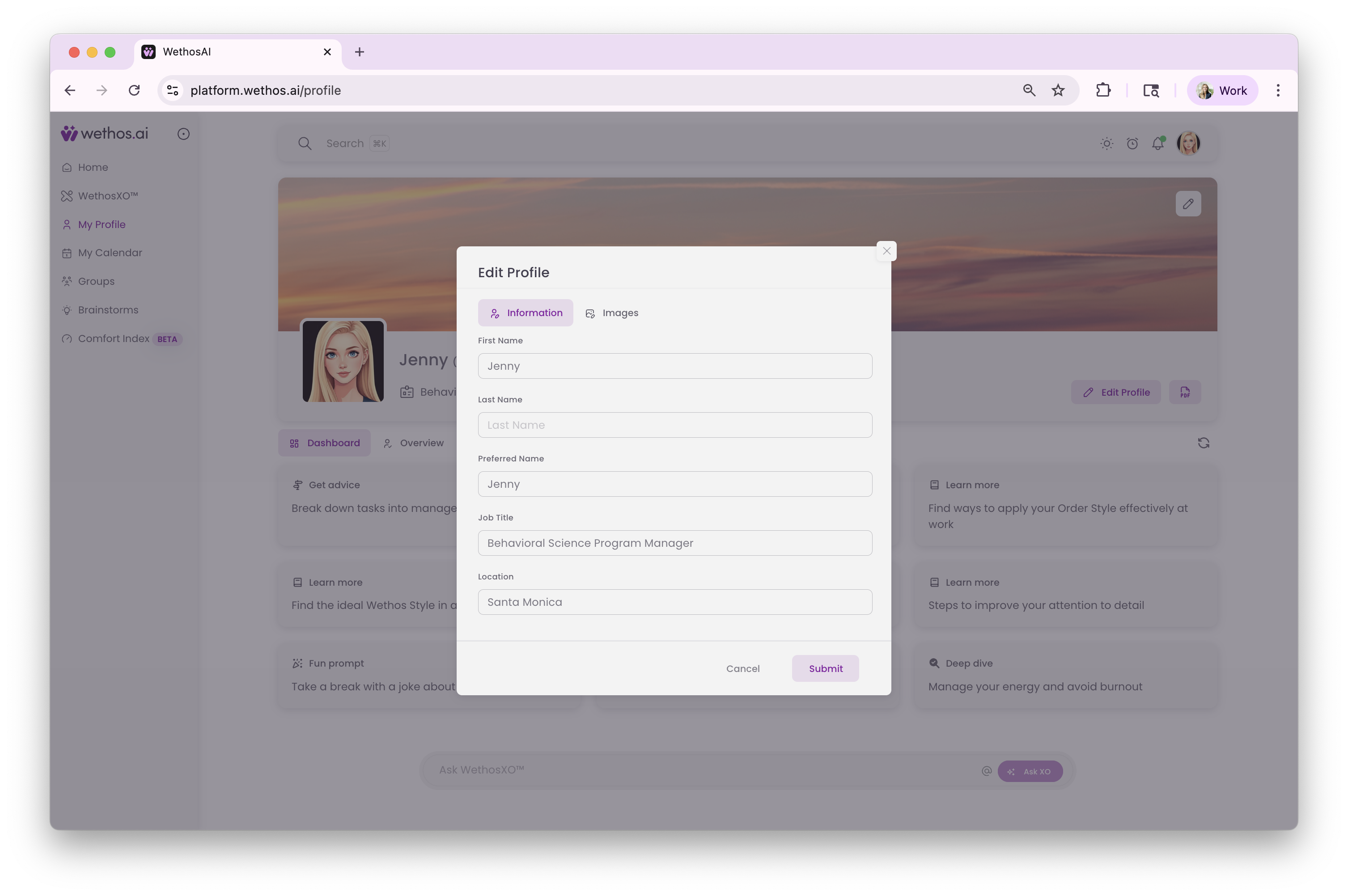
Use the Information tab to update:
- First Name
- Last Name
- Preferred Name
- Job Title
- Location
-
Submit your changes to save
Accessing additional settings
You can access comprehensive account settings by:
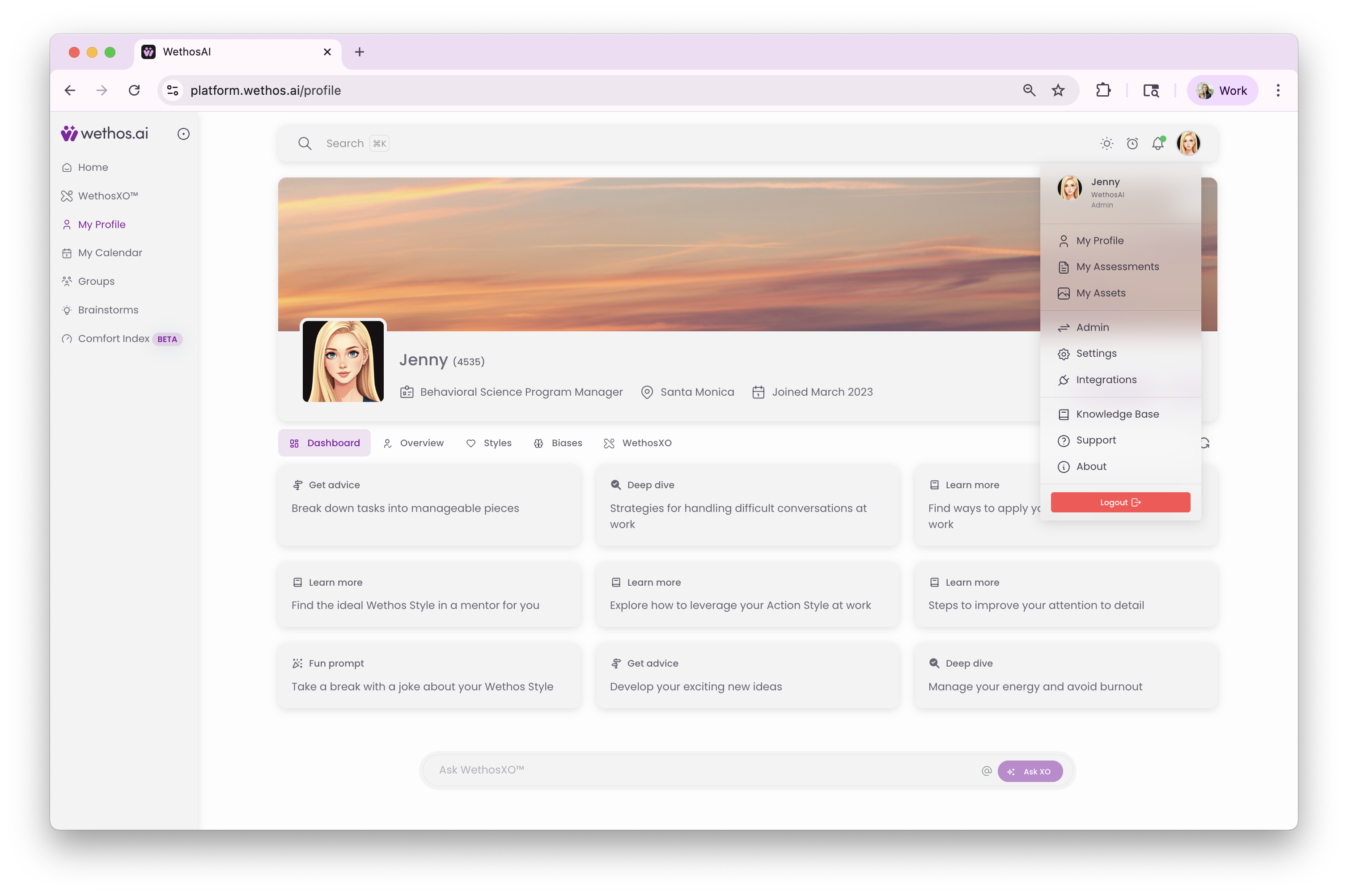
Click your profile picture in the upper right corner. From the dropdown menu, you can access:
- My Profile: Navigate directly to your My Profile page
- My Assessments: Update your profile from LinkedIn or a new set of questions, and choose which version is active
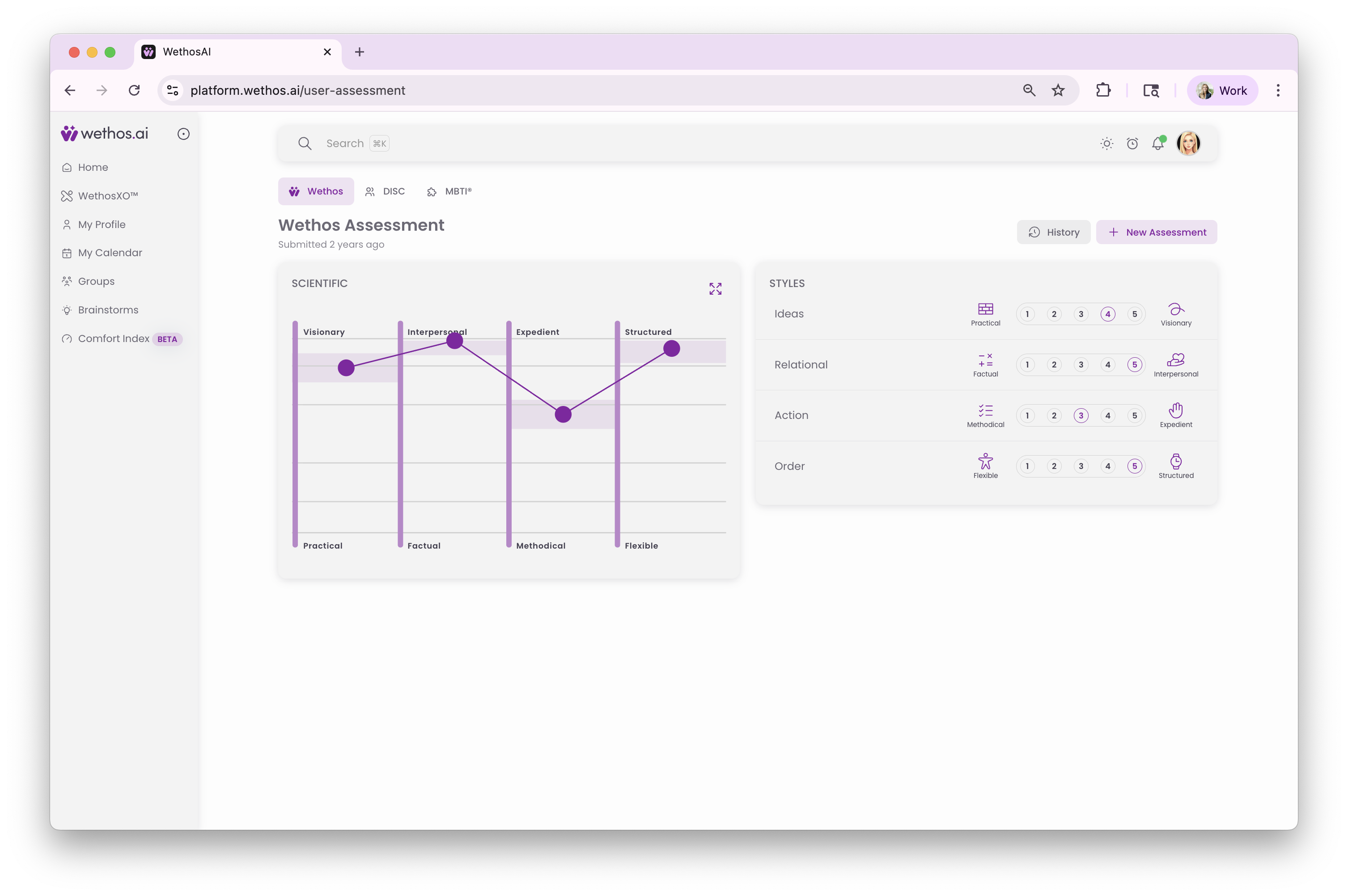
- My Assets: Access downloadable resources including:
- Virtual Meeting Backgrounds: Custom backgrounds built from your profile
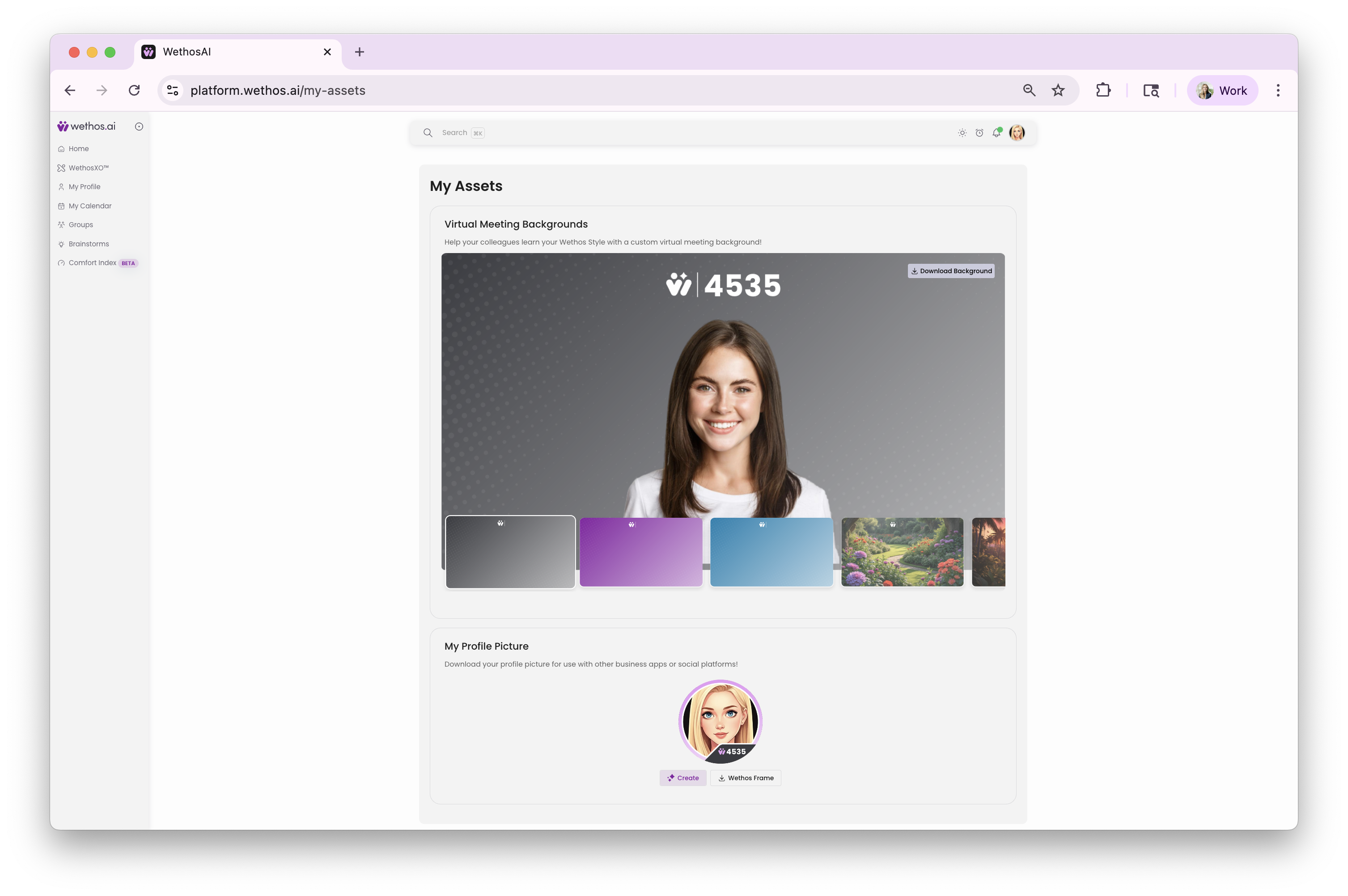
- My Profile Picture: Download your profile picture for use with other business apps or social platforms
Customizing your profile picture and banner
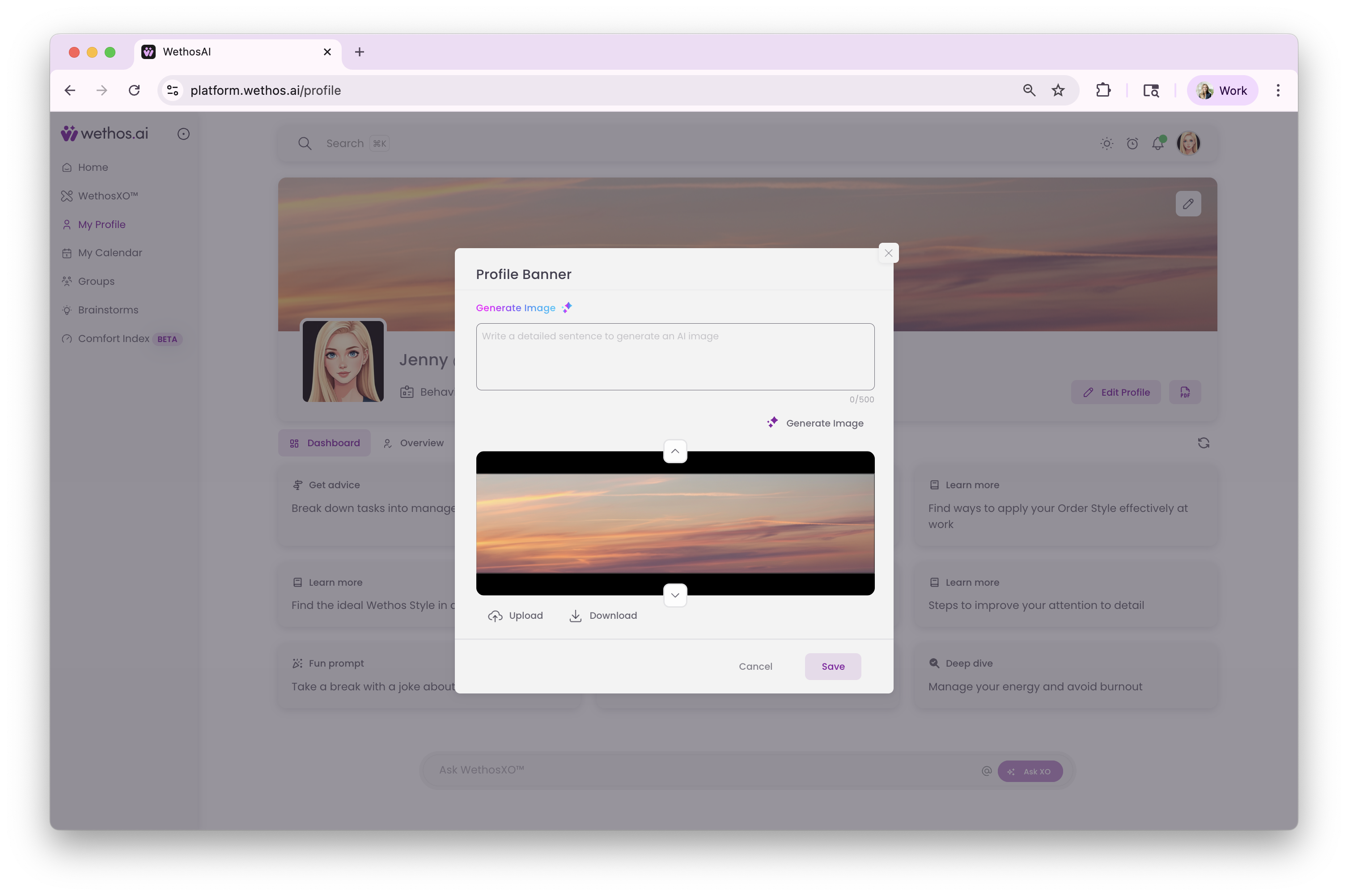
You can edit both your profile picture and banner through two methods:
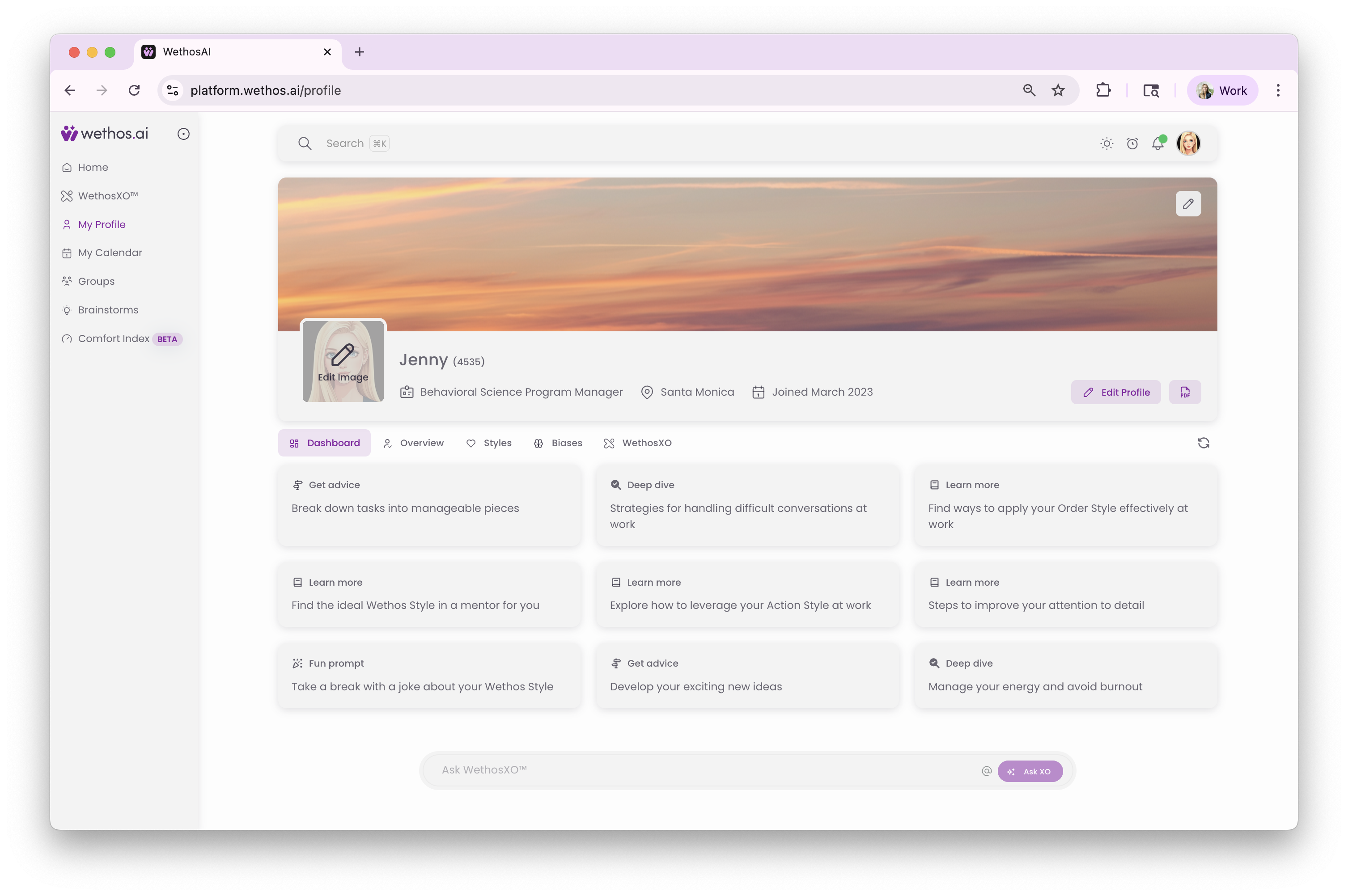
Direct edit from My Profile page
- Navigate to your My Profile page (via left navigation "My Profile")
- Click the edit icon (pencil icon) on your profile picture or banner image
- Choose from the available options
Edit profile modal
- On your My Profile page, click the "Edit Profile" button
- Select the Images tab in the modal
- Here you can edit both your profile picture and banner image
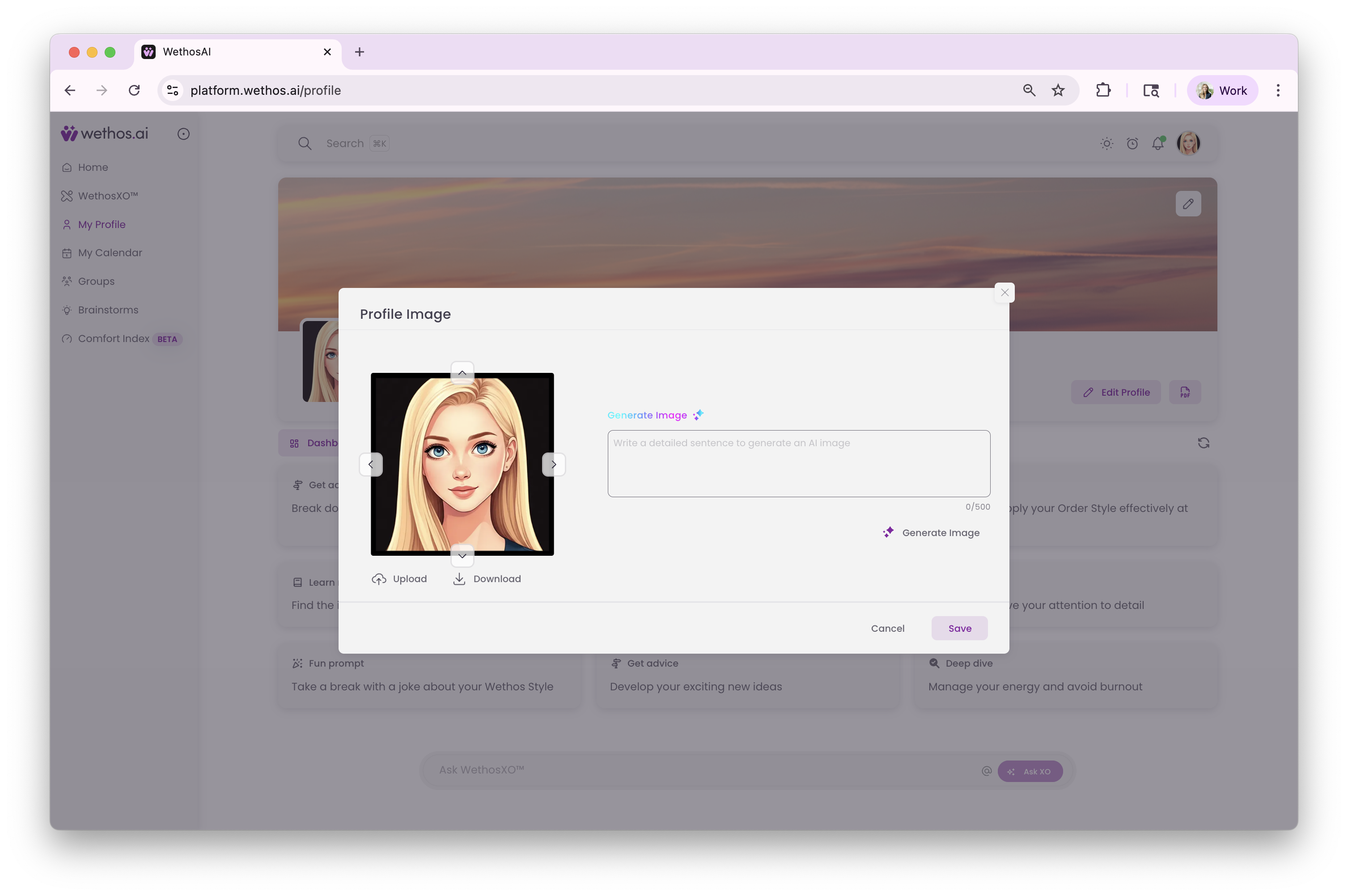
Profile picture options
- Select "Upload a profile picture" to choose a file from your device
- Supported formats: JPG, PNG
- Select "Generate one using AI" to create an AI-generated profile picture
- Save your changes
Banner image options
- Choose Upload option to select a custom banner image from your device
- Choose AI generation to use the AI feature to create a unique banner
- Ensure your image meets requirements:
- Supported formats: JPG, PNG
- Save your changes
Note: Your new profile picture will appear across the entire platform wherever your profile is displayed.
Downloading your profile
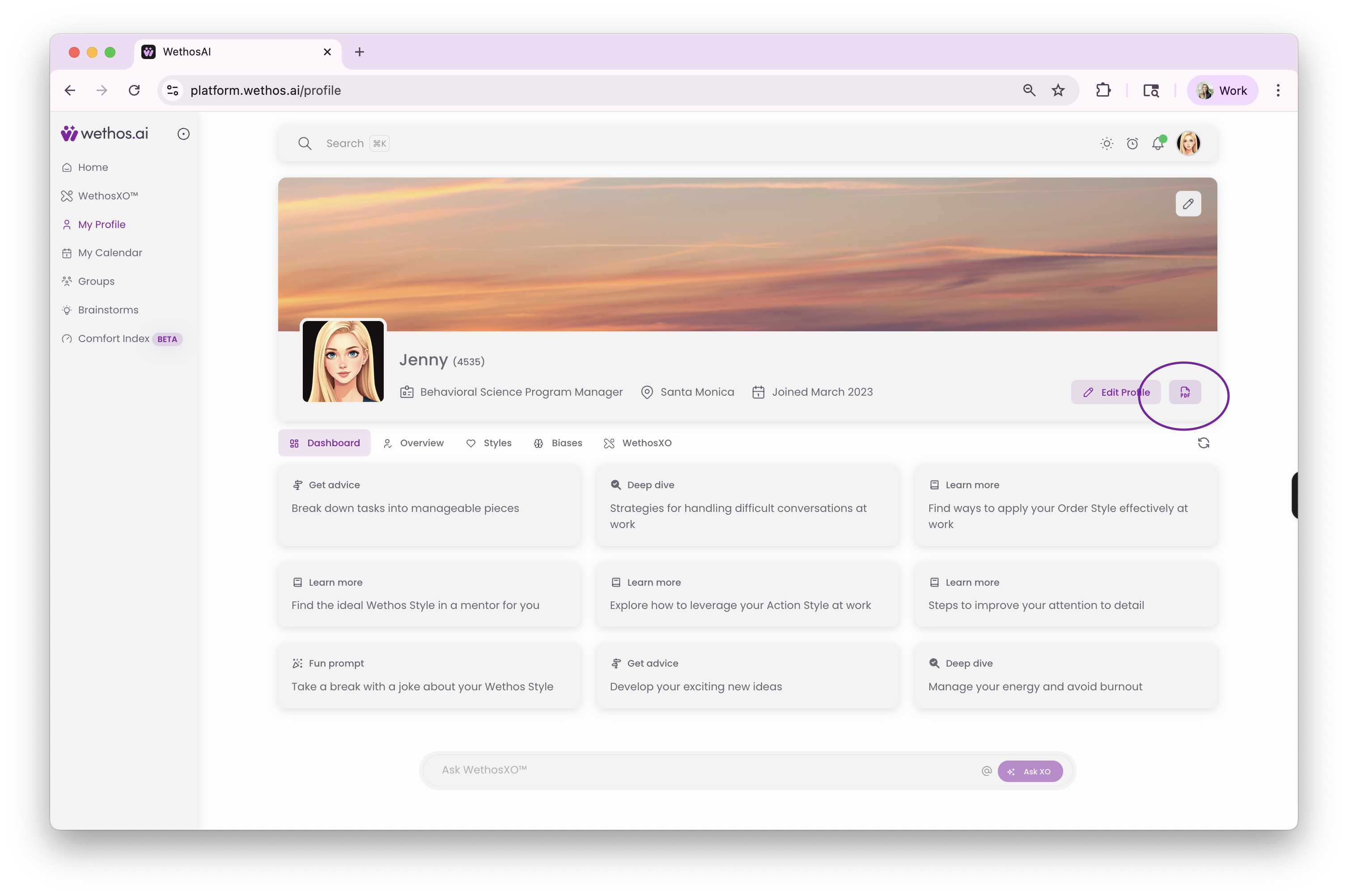
Create a PDF summary
- Navigate to your My Profile page
- Locate the PDF icon next to "Edit Profile"
- Click the PDF icon to automatically download a comprehensive profile summary
- The PDF includes your profile information and the four-dimension summary
Getting help
Using WethosXO for profile questions
- Access WethosXO from your My Profile tab
- Ask questions like:
- "How do I tend to take in information and weigh a decision?"
- "Where does my profile say I move fast, and where do I want more evidence?"
- "What should I check before I walk into a decision I care about?"
Contact support
- Email: support@wethos.ai
- Use the support form: Profile picture → Support
- Ask WethosXO for quick help with common questions
Your profile is what XO, Brainstorms and Simulations use when you take part in a decision. Keep it up to date and their answers get more specific.
Was this article helpful? Reach out if you need more.Contact support